3 mins into a ranked match, my squad wanted a callout on where the last guy was, and I was speaking. Speaking a lot, that is. Seems no one could hear a word I was saying. My mic symbol was green, all appeared to be fine on my end, and my whole squad assumed I’d gone AFK in the middle of a fight.
That was the moment I realized Discord problems aren’t just random errors. It’s a problem so common among PC gamers that most of us encounter it at some point, and typically when we least want to.
This has happened to me now more times than I’d care to admit, with various different games, different headsets, and different PCs. I’ve done enough troubleshooting now that I pretty much have a mental checklist I can skip through.
If your Discord voice chat keeps dropping, no longer hears you when you speak, or just flat out refuses to work while you game, here’s everything that’s actually worked for me.
Why This Happens More During Gaming Specifically
Now this is what threw me for a bit. I could use my Discord okay when I was simply chatting, it was only when I was in a game that it would stop working.
Here’s what I finally pieced together: gaming utilizes most of your CPU and GPU power, and Discord is sharing resources with whatever else you have going on in the background. When a game is using up nearly all your CPU and GPU power, Discord isn’t able to process your mic and voice inputs in time, leading to lag, “deafening,” or no response from your mic.
That’s before we even talk about the extra audio modes, background apps fighting over your microphone, and ageing audio drivers, all of which I’ll cover properly below.
My First Error: Assuming it Was My Headset
Initially, I thought it was my headset. I actually looked up new headsets to replace it for nearly an hour before I realized it traveled with me even when I used a totally different headset and mic combo.
That’s when I was like “This is software/settings, not hardware” the entire time.
Easy Steps That Fixed The Problem
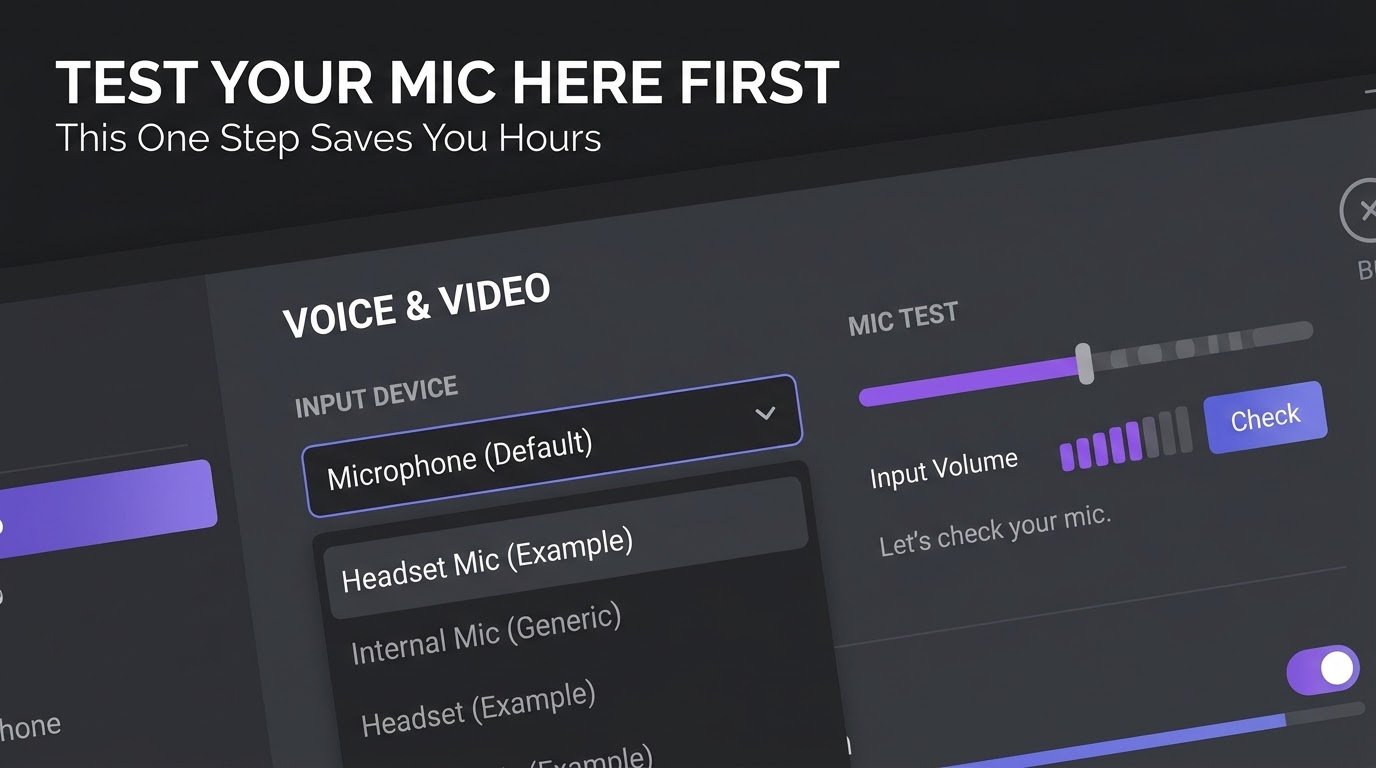
Step 1: Check Discord’s Voice Settings First
This seems simple, but I’ve actually done this. I’ve had the wrong input device selected and didn’t realize it until I started talking and heard nothing. This has happened to me more than once when I’ve plugged in a new headset or upgraded to the latest version of Windows.
-On Discord Settings, then Voice & Video, manually checked your Input Device and Output Device. Don’t just trust the “Automatic” option. I have manually set mine to my headset model name, and that’s been working immediately, more than once.
Step 2: Test Your Mic Within Discord Itself
Just below Input Device, you’ll see an option for a mic test. Select ‘Let’s Check’ and talk into the mic in a normal fashion. If you don’t see anything on the input meter, then that means the issue is occurring before Discord gets your mic input, which is a Windows issue.
This test single-handedly saved me from hours of headache fixing the wrong thing many times.
Step 3: Check Windows Microphone Permissions
After an update, Windows may prevent your app from using your microphone and Discord just gives no feedback about why.
Open Settings, Privacy & Security, Microphone and make sure that the switch next to “Let apps access your microphone” is enabled (on), then make sure Discord is checked in the list of apps that appears under this option.
This happened to me after a windows update once. My discord was fine the day before then just stopped working with no reason. Turned out windows had put my permission settings back to defaults without me knowing.
Step 4: Disable Exclusive Mode for Your Audio Device

One of these fixed a problem I had been unable to troubleshoot for weeks. Certain games take exclusive control of your audio device, which prevents Discord from using the device at the same time.
Open Control Panel, click on Sound, right click on your headset/microphone and go to Properties, then the “Advanced” tab and uncheck “Allow applications to take exclusive control of this device”. Repeat for both your playback and recording devices.
But as soon as I switched that off, random mic dropouts during gaming pretty much disappeared.
Step 5: Update Your Audio Drivers
Old audio drivers can be responsible for more strange, intermittent problems than you might think. I had an occurrence where I’d audio just drop off the face of the earth after 20 minutes without rhyme or reason.
Device Manager: open it, and under “Sound, video and game controllers” select your device, right click and choose “Update driver”. If nothing is installed this way, visit the manufacturer of the motherboard or the laptop directly to download the latest version of audio drivers.
Step 6: Turn off Krisp Noise Suppression in Discord for now
While Discord’s builtin Krisp noise cancellation is incredibly effective most of the time, I have seen moments where it cuts all audio completely on some mic configurations, particularly lower-cost USB mics.
In Voice & Video section, experiment with Noise Suppression being turned off or on to lower levels, see if that’s the cause. With me, this fixed random audio dropouts with a cheapo USB mic I happened to be using.
Step 7: Change Your Voice Processing Mode
Playing around with my codec settings The first thing I want to mention here is that there is a few options with your voice processing that is concealed beneath Voice & Video settings. I changed all of my input to being Manual and the Input Sensitivity was left to me to adjust.
It was also great to see that a simple slide of the sensitivity and some quiet chatting could solve a lot of those “why don’t they get the beginning of what I’m saying” moments.
Step 8: Run Discord as Administrator
Hah, this sounds pointless but I had some bizarre permission bug where discord could detect my mic but wouldn’t have access to the audio stream when I was running a game with elevated permissions.
Right-click the Discord icon or the desktop shortcut and run it as admin. Check if the issue persists when in game.
Step 9: Fully Reset Voice Settings
One last resort; if all else has failed there is a “Reset Voice Settings” button that sits in the bottom left of your voice and video settings page. The first time you do it you may think twice because there is no going back, but it only resets your audio settings, not your account or servers.
This was a fix for me one time when everything else I tried did not work. You can also read:
- Cloud Gaming Explained: Everything Beginners Need to Know
- How to Fix Games That Won’t Launch on Windows
Step 10. Make Sure Any Background Apps Are Not Using Your Mic
Certain applications, such as OBS, Zoom or even some game launchers, might be able to “hold” your microphone while you’re trying to use it on Discord.
Before we proceed to the troubleshooting steps, make sure any other applications that might be using your mic are completely closed (like Skype, Zoom, game overlays, etc.), restart Discord, and test the mic again.
A Real Example From My Own Experience
In a Valorant game I played a few months ago, my microphone was cutting in and out every 4 seconds. My teammates could hear all partial sentences, but no complete callouts.
I ran through my usual troubleshooting list and learned the real problem was that I had exclusivity enabled on my headset, along with an old driver that hadn’t been updated for months. Getting those two things together totally fixed it and I haven’t had that problem since.
The Usual Things People Do Wrong
- Jump to blame the headset. Yep, I used to do this myself. The hardware is hardly ever the problem, unless the Mic is broken, or really old.
- Never having checked the mic in the in discord’s own settings. The single test that can tell you it’s a Discord problem or a Windows problem and very few people do it.
- Not paying attention to the Windows permission settings. Updates tend to reset more settings than expected and microphone access is one of the most popular areas.
- Suppose Krisp noise suppression is always of benefit. It is nice the majority of time however I have experienced greater dropouts than I anticipated with some mic configurations.
- Never update your audio drivers. Everyone updates their GPU drivers religiously but forget that there is anything called an audio driver.
Wrapping Things Up
Gaming issues with Discord are nearly always fixable without extra spending or new hardware. Quite often it’s a setting that was silently altered during a Windows update, a special audio mode you had no idea was even there or a driver that needs updating.
I wasted a ridiculous amount of time blaming my hardware (that was until I found out the real fix was in menus inside my device that I opened once I learned what was really going on, it took 5 min versus 3 hours).
If you happen to be experiencing this mid-match, diagnose the problem step-by-step instead of starting to tinker with your settings at random. In most cases, you will find the real problem occurs in no time at all.
If you want to double-check anything here, Discord’s own official troubleshooting page for Voice & Video will cover some more device-specific edge cases for you to look at.

