I remember the exact moment I noticed something was wrong. I was mid-match in Valorant, about to clutch a round, and my game just froze for a solid two seconds. Not lagged. Froze. Enemy eliminated me while my screen was basically a paused photo.
I checked Task Manager right after (angrily, might add) and saw my CPU sitting at 98%. Not my GPU. My CPU. That confused me at first because I always thought graphics cards were the ones that struggled during gaming, not processors.
Turns out I was wrong, and that mistake cost me a lot of frustrating gaming sessions before I actually figured out what was going on.
If your fans are screaming, your game is stuttering, and Task Manager shows your CPU maxed out while gaming, this article is for you. I’ve been through this exact mess and fixed it without spending a single rupee on new hardware.
Why CPU Usage Spikes During Gaming In The First Place
Before jumping to fixes, it helps to understand what’s actually happening. Your CPU (processor) handles the “thinking” part of a game physics calculations, AI behavior, loading assets, and background tasks. Your GPU (graphics card) handles the “drawing” part rendering what you see on screen.
When your CPU usage shoots up to 90-100%, it means your processor is working overtime and can’t keep up with everything being thrown at it. This creates a bottleneck, meaning your expensive GPU is sitting there waiting for the CPU to catch up, which is honestly kind of ironic when you think about it.
I actually went down a rabbit hole trying to understand which component matters more for gaming performance, and ended up writing a full breakdown comparing the two in CPU vs GPU for Gaming: Which One Actually Matters More, if you want the deeper technical side of it.
My First (Wrong) Assumption
When I first saw high CPU usage, my gut reaction was “my processor is too weak, I need to upgrade.” I almost bought a new CPU on installment before a friend who’s genuinely good with PCs stopped me and asked one simple question: “Have you actually checked what’s running in the background?”
I hadn’t. Turns out I had 14 Chrome tabs open, Spotify running, a Discord call active, and some update running silently in the background. My CPU wasn’t weak. It was just drowning in tasks I didn’t even know were happening.
Lesson learned: check before you spend money.
Step-by-Step Fixes That Actually Worked For Me
Step 1: Check What’s Actually Eating Your CPU
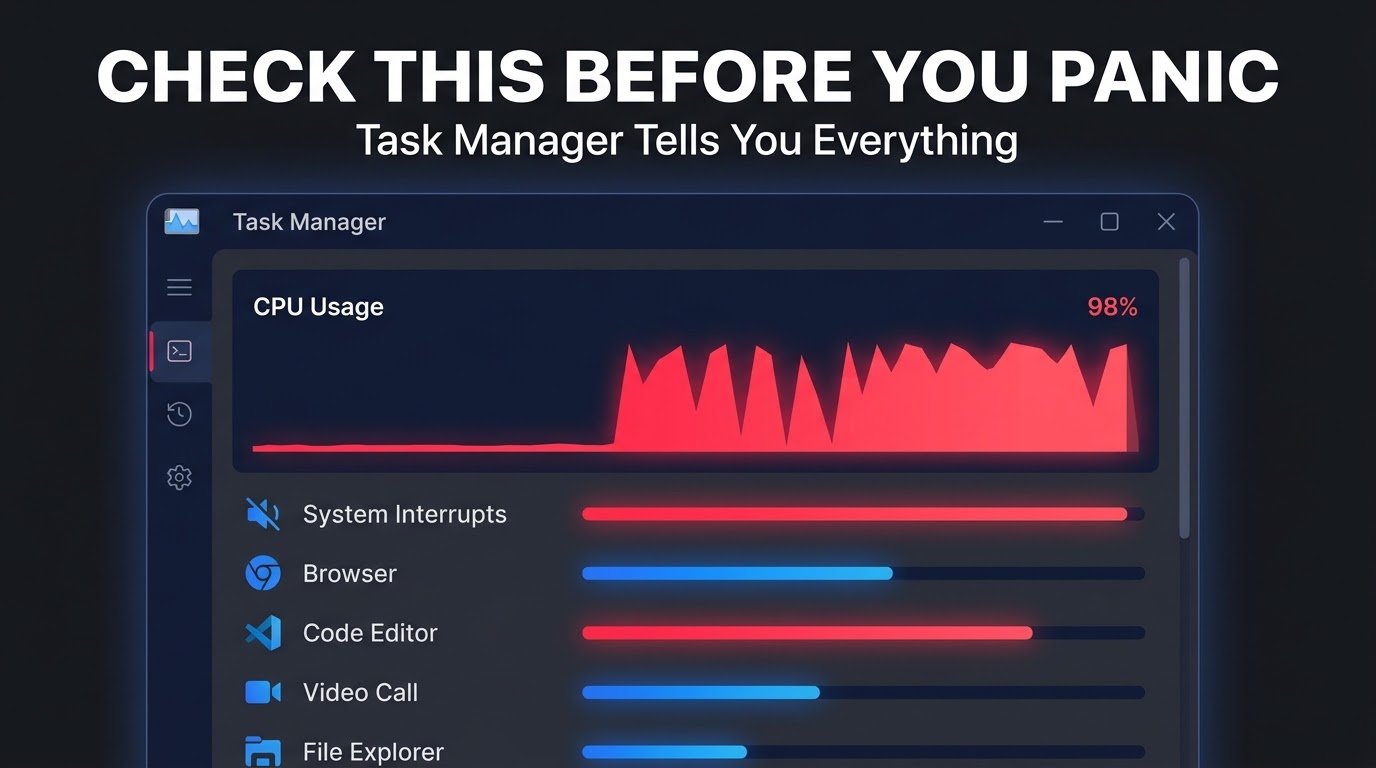
Open Task Manager (Ctrl+Shift+Esc), click the “Processes” tab, and sort by CPU usage. Do this while your game is running, not before.
You’ll probably be shocked at what shows up. For me it was Chrome eating 20%, Windows Search Indexing eating another 8%, and some random background updater I didn’t even remember installing.
Step 2: Close Background Apps Before Launching Your Game
This sounds obvious, but I genuinely didn’t do this for months. Now it’s a habit:
- Close your browser completely, not just minimize it
- Exit Discord or switch to browser-based Discord if you need it
- Pause OneDrive or Google Drive syncing
- Close Spotify or switch to a lightweight player
Just doing this alone dropped my CPU usage from 98% to around 70% during gameplay. That’s a massive difference.
Step 3: Disable Unnecessary Startup Programs
A lot of apps set themselves to auto-launch when Windows boots, and they keep running in the background eating resources even if you never touch them.
Go to Task Manager, click the “Startup Apps” tab, and disable anything you don’t need running 24/7. For me, that was Skype, an old printer software I don’t even own anymore, and a game launcher I barely use.
Step 4: Turn Off Windows Game Bar (Sometimes It Helps, Sometimes It Hurts)
Windows Game Bar is supposed to help with recording and overlays, but on my laptop, it was actually adding overhead. Go to Settings, then Gaming, then Game Bar, and toggle it off if you’re not using it for recording or screenshots.
I was skeptical this would make a difference, but I genuinely saw a few percentage points drop in CPU usage after turning it off.
Step 5: Update Your Chipset and BIOS Drivers, Not Just GPU Drivers
Everyone talks about updating graphics drivers, but almost nobody mentions chipset drivers. These control how your CPU communicates with the rest of your system.
I updated mine through my laptop manufacturer’s official support page (mine was Lenovo, but check whatever brand you have Dell, HP, ASUS all have similar support pages) and noticed smoother performance almost immediately.
Step 6: Check Your Power Plan Settings
This one genuinely surprised me. Windows has a “Balanced” power plan by default, which can throttle CPU performance to save battery, even while plugged in.
Go to Control Panel, then Power Options, and switch to “High Performance.” On a laptop, this drains battery faster, so only use it while plugged in and gaming.
Step 7: Check For Overheating Issues
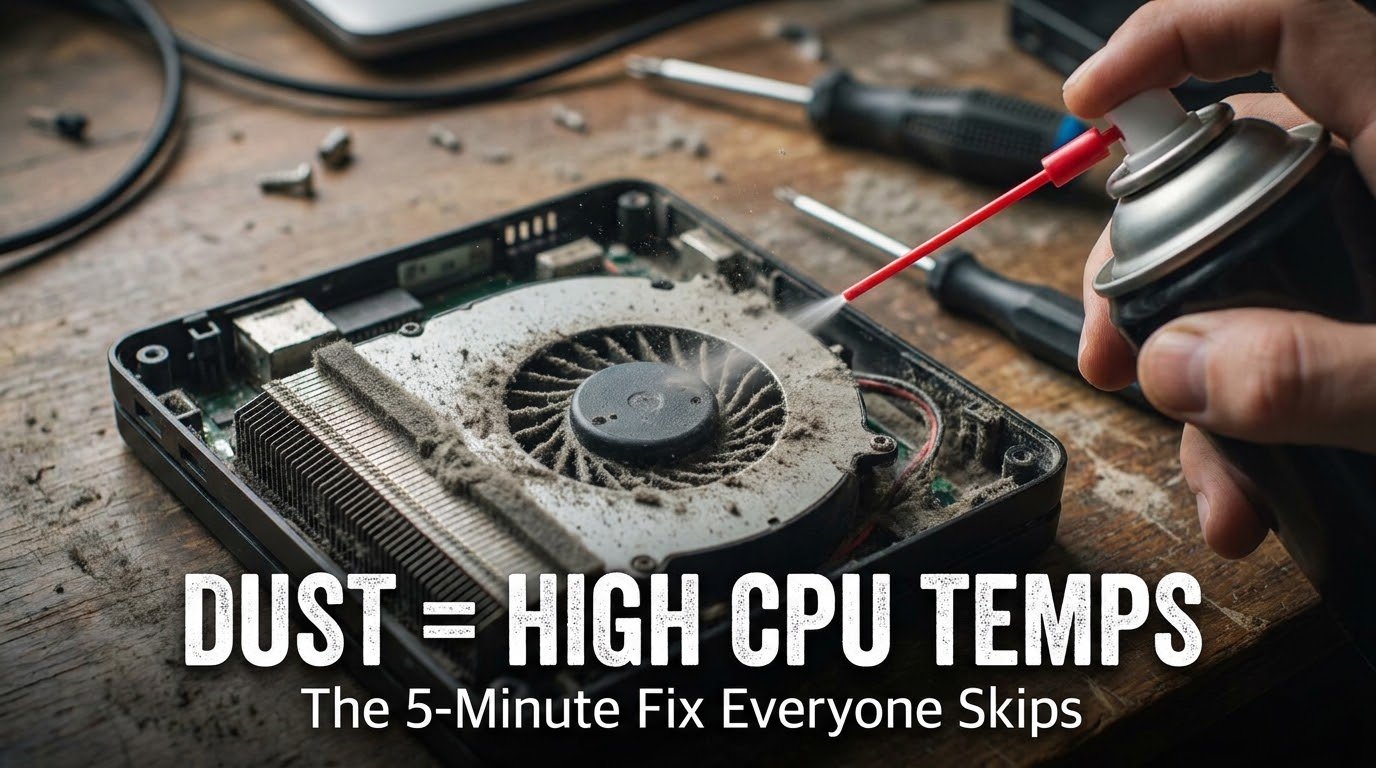
High CPU usage and overheating often go hand in hand. When a CPU overheats, it throttles itself to avoid damage, which paradoxically makes it work harder and hotter trying to keep up with the game’s demands.
I used a free tool called HWMonitor to check my CPU temperature while gaming. Mine was hitting 85°C, which is way too hot for sustained gaming. I cleaned the dust out of my laptop’s vents with a can of compressed air, and my temps dropped to a much safer 65-70°C range.
Step 8: Lower In-Game Settings That Rely Heavily On CPU
Not all game settings stress your GPU. Some, like physics simulation, draw distance, and NPC density, actually lean on your CPU more.
In most games, lowering these specific settings (not just graphics quality) can ease CPU load significantly. I noticed this especially in open-world games where a lot of background AI and physics calculations are constantly running.
Step 9: Scan For Malware (Yes, Seriously)
This one embarrassed me a little. I ran a scan using Malwarebytes after months of unexplained CPU spikes and found a cryptomining script running quietly in the background. It had been eating my CPU resources for who knows how long.
I never would have guessed that until I actually looked. If none of the other fixes work, this is worth checking.
A Real Example From My Own Setup
My laptop is an i5 10th gen with 8GB RAM and a GTX 1650. Before these fixes, CPU usage during GTA V sat around 95-100%, and I’d get stuttering every few minutes.
After closing background apps, updating chipset drivers, cleaning dust out of the vents, and switching my power plan, CPU usage dropped to a steady 65-75% during the same game. The stuttering practically disappeared.
I’m not saying every fix works the same for every setup, but stacking these together made a real, noticeable difference for me.
Common Mistakes People Make
Blaming the GPU immediately. I did this too. High usage doesn’t always mean what you think it means. Always check CPU usage specifically before assuming it’s a graphics card problem.
Overclocking without understanding the risks. A friend of mine overclocked his CPU following a random YouTube video without checking his cooling setup. His laptop crashed repeatedly until he reverted it. Don’t touch overclocking unless you genuinely understand thermal management.
Ignoring background processes. This was my biggest mistake. I assumed background apps were “basically not doing anything” when idle. They were doing a lot more than I thought.
Never checking temperatures. A lot of people fix CPU usage without ever checking if overheating is part of the problem. Both issues often show up together.
Assuming an upgrade is the only solution. Sometimes it genuinely is, especially with older processors. But check everything else first before spending money you might not need to spend.
Final Thoughts
High CPU usage during gaming isn’t always a sign that your processor is outdated or broken. More often than not, it’s a mix of background clutter, outdated drivers, and settings nobody bothers to check.
I spent way too long assuming I needed new hardware when the real issue was a messy system running fourteen things I didn’t even know about. Once I cleaned that up, my old setup handled games way better than I expected.
If you’re dealing with this right now, don’t panic and don’t rush into buying a new CPU. Work through these steps one at a time and actually watch your Task Manager while you do it. You’ll probably be surprised at what’s really going on under the hood.
For more on how CPU and GPU workloads actually differ and which one to prioritize if you are planning an upgrade down the line, Intel’s own explainer on CPU performance is a solid technical read if you want to go deeper into the hardware side of things.