The first thing I noticed when I started looking into GTA 5 on mobile was how confusing the whole subject had become.
Search for it and you’ll find pages promising a mobile version, videos showing GTA 5 running on phones, and guides that make the process sound as simple as installing an ordinary Android game. But once you actually try to figure out what’s happening behind the scenes, things become much clearer.
I spent time looking at the realistic ways to play GTA 5 from a phone, including cloud gaming and remote streaming. The biggest lesson was surprisingly simple: your phone doesn’t necessarily need to run GTA 5 itself.
It just needs to be able to connect to the machine or service that is running it.
GTA 5 On Mobile Is Not Quite What It Sounds Like
Let’s clear up the most important point first.
Grand Theft Auto V isn’t available as a normal official Android or iPhone game that you can simply install from an app store and play offline like a typical mobile title.
That is very different from saying that you can’t play GTA 5 using a phone. Modern game streaming has changed that part considerably. A phone can act as the screen and controller while a PC, console, or cloud computer handles the actual game.
Once I understood that distinction, the whole GTA 5 mobile question stopped being confusing.
⬇️
Three Different Ways A Phone Can Play GTA 5
There isn’t one universal “GTA 5 mobile method.” There are several completely different setups, and they shouldn’t be mixed together.
- Cloud gaming: GTA 5 runs on a remote gaming server and is streamed to your phone.
- PC game streaming: GTA 5 runs on your own gaming PC while your phone receives the gameplay.
- Remote play: A compatible computer or console runs the game while you control it remotely from your phone.
In all three cases, your phone is not magically becoming a desktop gaming PC. The heavy processing happens somewhere else.
That is actually good news if your phone isn’t particularly powerful.
Cloud Gaming Is The Most Interesting Option
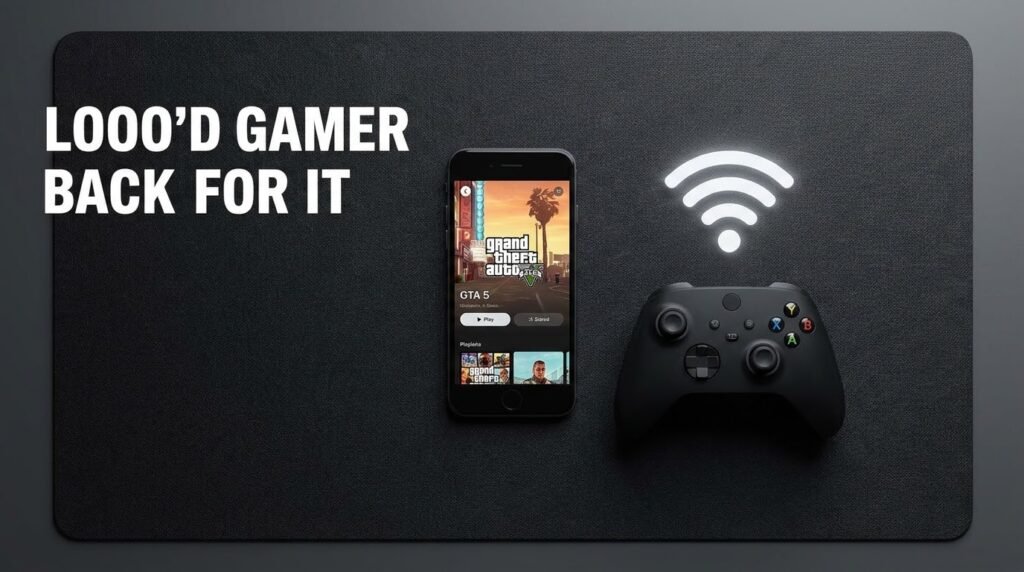
If you don’t have a gaming PC sitting at home, cloud gaming is probably the first option worth investigating.
The concept is easier to understand than it sounds. A powerful computer located in a data center runs GTA 5. Your phone receives a live video stream of the game, while your controls are sent back to that computer.
So when you press a button to accelerate a car, the input travels to the remote machine, the game responds, and the resulting video comes back to your phone. It is almost like controlling a video that happens to respond to you.
⬇️
What Cloud Gaming Actually Feels Like
This was the part I found most interesting.
When the connection is stable, GTA 5 can look surprisingly good on a phone. Driving around Los Santos doesn’t feel like you’re playing a lightweight mobile imitation. You’re seeing the actual game being rendered remotely. But then the network becomes unstable and you immediately notice the downside.
The image may become softer. Compression can become more obvious. Controls can feel delayed. In a really bad connection, the stream can pause or disconnect. That means your phone’s processor isn’t necessarily the limiting factor.
Your network can be the bigger problem.
Internet Stability Matters More Than Phone Power
This is one of the easiest things to overlook.
Someone might spend a lot of money upgrading to a powerful phone while continuing to use an unreliable Wi-Fi connection. For cloud gaming, that isn’t necessarily going to improve the experience.
A reasonably capable phone connected to stable Wi-Fi can be much more enjoyable than a flagship phone connected to an inconsistent network.
For home use, I’d pay attention to a few things:
- Use a stable Wi-Fi connection.
- Stay reasonably close to your router.
- Use a modern Wi-Fi band when your phone and router support it.
- Avoid heavy downloads while gaming.
- If possible, connect the gaming PC to the router using Ethernet when using PC streaming.
If you’re using mobile data, remember that game streaming continuously transfers video. Keep an eye on your data allowance rather than assuming it will use very little.
⬇️
A Controller Makes A Huge Difference
I wouldn’t choose touchscreen controls as my first option for a long GTA 5 session.
GTA 5 has a lot going on at once. You might be driving, changing the camera, braking, accelerating, aiming, switching weapons, or trying to interact with something. Touch controls can work, but physical controls feel much more natural.
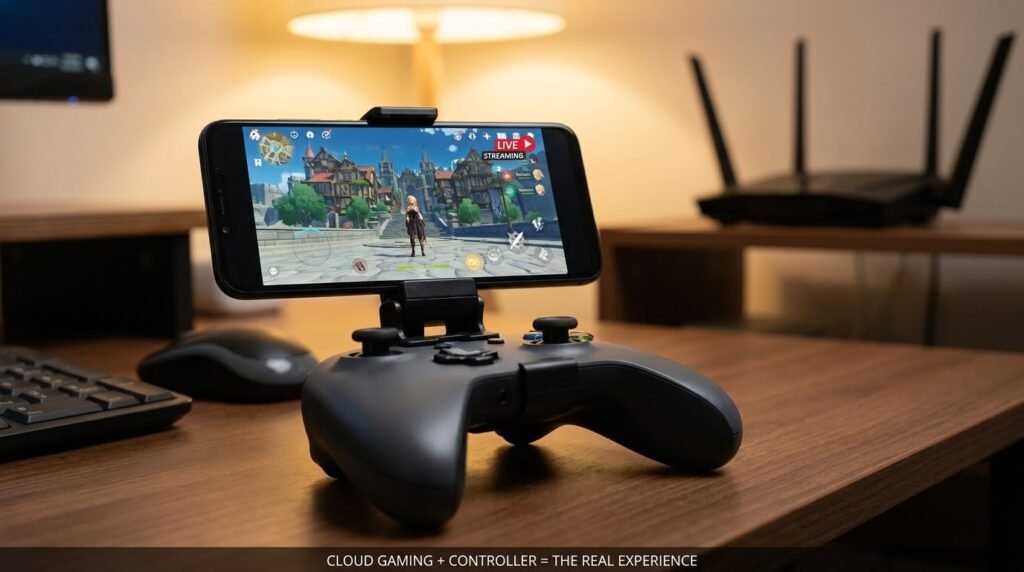
A compatible Bluetooth controller can make the experience feel dramatically closer to playing on a console. You don’t necessarily need an expensive controller either. The important things are comfortable buttons, reliable connectivity, and compatibility with your phone and streaming service.
Your Own PC Can Become A Mobile GTA Machine
There’s another option that I actually like even more if you already own a gaming PC. Instead of paying for a cloud computer to run GTA 5, let your own PC do the work.The game stays installed on your computer. Your phone simply connects to the computer and displays the gameplay. This is commonly referred to as game streaming or remote play.
Steam Remote Play is one example of technology that can be used for compatible games and setups. Other remote-streaming solutions are also available depending on your computer, operating system, and preferred setup.
⬇️
How The PC Setup Works
- Install GTA 5 normally on your gaming PC through an official game platform or launcher.
- Make sure GTA 5 works properly on the computer first.
- Install a compatible game-streaming or remote-play app on your phone.
- Connect your phone and PC according to the software’s instructions.
- Pair a compatible controller with your phone.
- Start GTA 5 from the streaming interface.
The PC handles the graphics and game processing while your phone becomes the portable display.
Why Ethernet Can Change The Experience
If you’re streaming from your own PC, there’s one small upgrade that can make a surprisingly noticeable difference: connect the PC to your router with Ethernet if that’s practical.
Your phone can remain on Wi-Fi while the computer uses a wired connection. This removes one wireless link from the PC side of the setup and can make the connection more consistent.
It won’t fix every problem, but it is one of the first things I’d try before changing lots of settings.
⬇️
The Native Installation Question
This is where I think many GTA 5 mobile articles make things unnecessarily complicated.
A native mobile game means the software is officially built and supported for Android or iOS. You install the application, launch it, and the phone itself handles the game. That’s not the same thing as streaming GTA 5 from another computer.
It is also why I wouldn’t recommend treating random files advertised as a “GTA 5 Mobile” version as if they’re automatically legitimate. For a normal reader, there is little benefit in chasing questionable installations when legitimate streaming options already exist.
If a website promises a full GTA 5 mobile experience through an unexplained installation process, I’d slow down and check exactly what is being offered before putting anything on your device.
What About Android Phones?
Android is particularly interesting because the operating system supports a wide range of hardware and accessories.
But having a modern Android phone doesn’t automatically mean GTA 5 can be installed as a native mobile game. For Android users, cloud gaming and PC streaming are the practical approaches to investigate.
If your phone supports Bluetooth controllers and has a good Wi-Fi connection, it can become a surprisingly capable portable gaming screen.
⬇️
What About iPhone?
The basic idea is the same on iPhone.
A powerful iPhone doesn’t automatically mean a desktop version of GTA 5 can be installed as an ordinary App Store game. However, an iPhone can still work very well with supported cloud gaming or remote-play services.
The important part is checking the current service requirements, game availability, and regional support rather than relying on an old article or video.
The Setup I Would Choose
If I already owned GTA 5 and had a capable gaming PC, I’d start with local game streaming. There’s no reason to introduce a cloud subscription when the hardware sitting on your desk can already run the game.
If I didn’t own a gaming PC, I’d investigate legitimate cloud gaming services and check whether GTA 5 is currently available in my region. And regardless of which route I chose, I’d use a controller.
That combination keeps the setup relatively simple without pretending that GTA 5 has suddenly become a native mobile game.
⬇️
A Simple Comparison
| Method | Where GTA 5 Runs | What Your Phone Does | Best For |
|---|---|---|---|
| Cloud Gaming | Remote cloud server | Streams and sends controls | People without a gaming PC |
| PC Streaming | Your own PC | Displays the game remotely | People who already own a gaming PC |
| Remote Play | Compatible PC or console | Remote screen and controls | Home gaming and portable play |
| Native Mobile Game | The phone itself | Runs the entire game | Not currently the normal official GTA 5 option |
Small Changes That Can Improve Streaming
You don’t always need to increase image quality to get a better gaming experience.
If the stream feels sluggish, try lowering the streaming resolution or quality slightly. A smoother connection is usually more useful than having an extremely sharp image with noticeable input delay.
- Lower stream quality if your connection struggles.
- Close apps that are consuming network bandwidth.
- Keep your phone reasonably charged during long sessions.
- Use a controller instead of relying entirely on touchscreen controls.
- Keep the phone within a strong Wi-Fi range.
- Use Ethernet for the PC when possible.
Sometimes a small reduction in visual quality makes the whole game feel better.
Why The Same Setup Can Feel Different For Everyone
This is something I wouldn’t have appreciated before testing different approaches. Two people can use the same cloud gaming provider and have completely different experiences.
One person may get a smooth stream that feels almost like a console. Another person may experience blurry visuals and delayed controls. That doesn’t necessarily mean one person is exaggerating. Their network conditions can be completely different.
Distance to the server, Wi-Fi congestion, router performance, network stability, and other factors can all affect game streaming.
⬇️
The Biggest Misunderstanding About GTA 5 Mobile
People often ask whether a phone is powerful enough to run GTA 5. For cloud gaming, that’s not really the right question.
The better question is: Where is GTA 5 actually running? If the game is running on a remote server, the cloud computer is handling the demanding graphics work.
If you’re using your own PC, your PC is doing it. Your phone mainly needs to decode the stream, display it, and send your controls back. That is why game streaming is such an interesting workaround for demanding games.
When Cloud Gaming Isn’t A Good Fit
Cloud gaming isn’t perfect for everyone. If your internet connection is unreliable, competitive or fast-paced gameplay can become frustrating.
It may also be less attractive if you already have a gaming PC capable of running GTA 5 because you can simply stream from your own hardware.
And if you’re specifically looking for a completely offline experience, streaming isn’t going to provide that. The game still has to run somewhere.
What I Learned From Testing The Different Approaches
The biggest lesson wasn’t about graphics settings or phone specifications. It was realizing that “GTA 5 on mobile” describes several different experiences. Playing GTA 5 on a phone through cloud gaming is not the same as installing GTA 5 directly on the phone.
Streaming it from your own PC isn’t the same as using a cloud service either. Once you separate those ideas, choosing a setup becomes much easier. And honestly, this is the part I wish more guides explained before jumping straight into technical instructions.
⬇️
Is GTA 5 On Mobile Worth Trying?
If you already have the right hardware or access to a legitimate cloud gaming service, absolutely.
Playing a full-size game like GTA 5 from a phone can be surprisingly convenient. You can sit somewhere comfortable, connect a controller, and pick up where you left off without needing to occupy the main TV. Just keep your expectations realistic.
You’re usually streaming the game rather than turning your phone into a miniature gaming PC.
The Bottom Line
After looking at the different options, I wouldn’t spend my time searching for a mysterious “GTA 5 mobile” installation.
If you want GTA 5 on your phone, think about where you want the game to run. Have a gaming PC? Stream it from there. Don’t have one? Look at legitimate cloud gaming services and check their current GTA 5 availability.Want better controls? Add a compatible controller.
Having connection problems? Work on the network before blaming the phone. That approach is much more straightforward than chasing questionable mobile versions, and it gives you a realistic way to enjoy GTA 5 from a device that’s already in your pocket.
The funny part is that the phone doesn’t actually have to do all that much. It just needs to show Los Santos clearly, respond quickly when you press a button, and stay connected. The heavy lifting can happen somewhere else.