I used to think I simply had a bad aim. Truly bad. I’d be outplayed every game in CS:GO by opponents who seemed to react at least half a second quicker than me, without fail, and I put it down to skill.
Then I tried it out on a friend’s setup with a 144Hz monitor and wow, it’s as if someone pressed a cheat code. I moved through the game more seamlessly, flicking was as simple as brushing the mouse, targets just seemed to stick out clearer. I didn’t instantly become a better player – my monitor was secretly limiting me the entire time.
That really one afternoon changed the entire way I thought about PC gaming, and it’s why I want to take my time here and not just throwing numbers out of nowhere.
What Is a Refresh Rate (In Simple Terms)?
Refresh rate is how many times your monitor refreshes the image on the screen each second. Refresh rate is written in how many times your monitor will be updating the image on the screen. For example: 60Hz monitor refreshes the image 60 times every second.
144Hz monitor refreshes the image 144 times every second. 240Hz monitor refreshes the image 240 times every second.
More FPS=Better gaming performance Means… More frames per second = Better scrolling, animation and overall gameplay Less blur when characters and surroundings move quickly …and if you’re a competitive player, a real advantage in reaction time.
Let me be very clear about this though: refresh rate is not a magic bullet. It will not turn a new player into a seasoned professional instantly. It will just give you one less thing to deal with that was quietly working against you all along – like using a laggy mouse compared to a mouse that works perfectly.
My Actual Experience With All Three
60Hz: Where I Started
I spent years gaming on a 60Hz monitor without any idea that something better might be out there. Truth be told, the games appeared to run just fine. Narrative-driven games, slow games, even some shooters all seemed playable.
But these problems only became clear to me in retrospect: rapid camera jerks felt slighlty blurred; fast-paced competitive matches felt like “stickiness” I couldn’t quite put my finger on at the time. I assumed this was the normal experience as I had nothing else to compare to.
144Hz: The Upgrade That Actually Surprised Me
That’s when I bought my own 144Hz monitor and game with it for the first time, and the change was more apparent than I thought it would be. I really thought I was imagining it.
Nope. The mouse did seem a little snappier. I found scrolling through websites to be a little smoother than usual too, something I didn’t even bother to think about outside of gaming. In Valorant and Apex Legends, I was actually able to track moving enemies a little more clearly since there was less motion blur.
My aim didn’t suddenly become pro-level, but I got a lot better at consistency. I no longer lost gunfights just because I couldn’t follow movement well.
240Hz: Where Diminishing Returns Kick In
I also play at a gaming lounge and decided to try a 240Hz monitor out of curiousity. Here’s what I thought of it: I was kind of surprised that the difference between 60Hz and 144Hz felt bigger than the difference between 144Hz and 240Hz.
Not to say 240Hz isn’t smoother, because it most definitely is, but the disparity becomes even more difficult to discern except if you’re playing at a pro level or you’re specifically 240Hz-trained to see the frame-by-frame differences.
For casual and even semi-competitive players I’d say 144Hz hits the spot where the extra value is a jump you can feel, but without pay for a slight kick of extra smoothness.
Step By Step: How To Actually Figuring Out What You Need
Step 1: Make Sure Your GPU Can Handle It
Well this is the mistake I fell for at first. I nearly bought a 240Hz monitor before I realized I couldn’t reliably reach 100 fps in most of the games I played at the time.
What’s the point of a fast refresh rate monitor if your graphics card isn’t pumping out a lot of frames? Look up your average FPS in your most-played games using a Steam FPS counter or a performance overlay such as MSI Afterburner.
If you’re hovering between 75-90 FPS, a 144Hz monitor is justified. If you’re getting close to 200 FPS in competitive games, a 240Hz monitor begins to be viable.
Stage 2: Consider The Games You Like To Play
Games that don’t have fast-paced gameplay, such as story-based RPGs, strategy games, and simulation games, also derive minimal benefit from high refresh rates. I still enjoy playing games like Civilization and Stardew Valley at 60Hz and don’t see much of a difference.
That said, speed is more important when it comes to competitive FPS and racing titles. That means if you play primarily those titles, you’ll see the benefit of an upgrade much more clearly.
Step 3: Also Match Response Time of Monitor
This section is often ignored. The refresh rate is not the only relevant spec. Response time, in milliseconds (ms) refers to how quickly individual pixels are able to change colors.
I once bought a low-cost 144Hz monitor with a sluggish response time, and in practice, all it did was add ghosting-a trailing of a blurry trail behind a moving object. If you’re purchasing a monitor specifically for gaming, look for one with a 1ms response time or as close to it as possible.
Step 4: Turn On the Correct Settings After Purchase
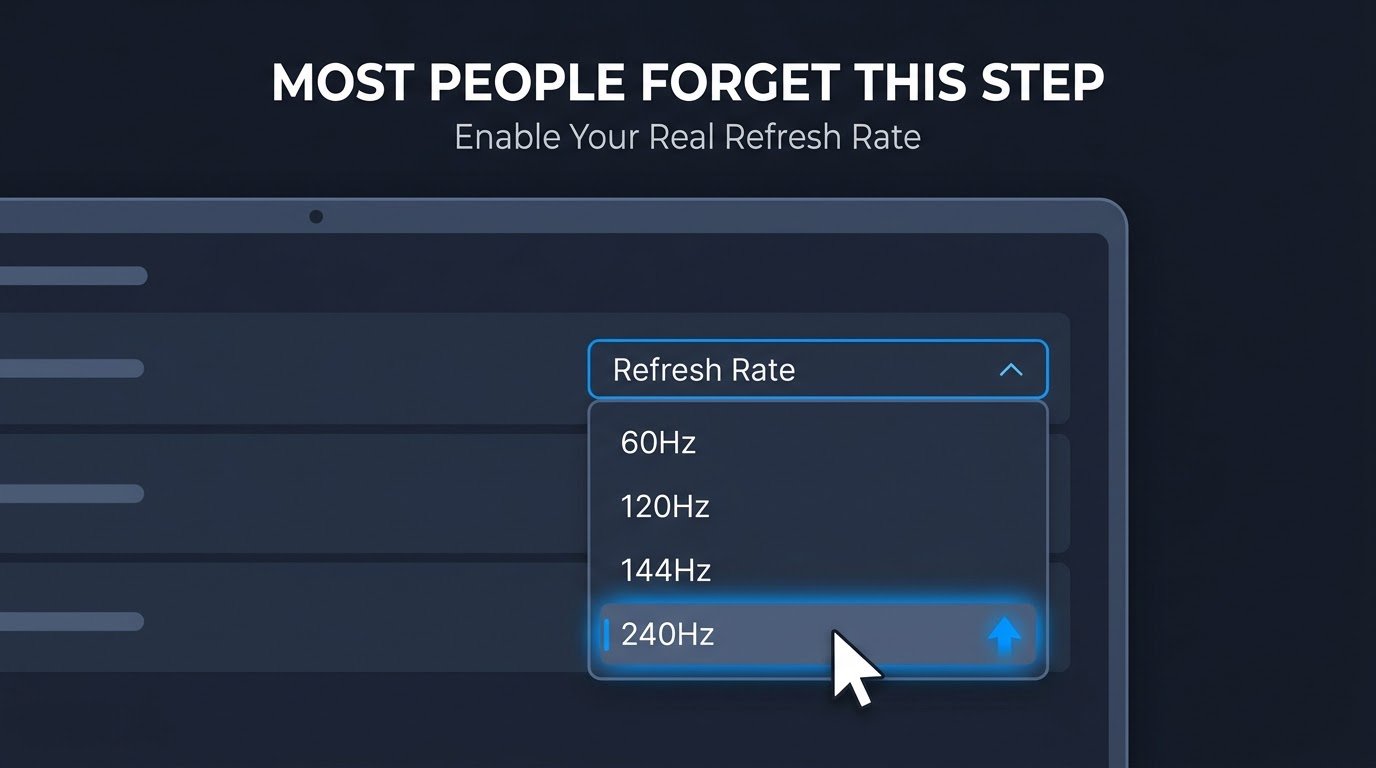
Getting a high refresh rate monitor is step 1. This isn’t the end of the story. I simply connected mine first and didn’t notice that Windows still had a 60Hz limit on.
In Settings, System, Display, Advanced Display Settings, select the maximum refresh rate manually. I used a 144Hz monitor at 60Hz for the first two days of ownership and didn’t realize I was doing it until I finally figured out what was going on.
Step 5: Turn on G-Sync or Free Sync, if supported
Using an Nvidia GPU with a G-Sync compatible monitor, or an AMD GPU with Free Sync. When you activate this feature, your frame rate will be synchronized with your monitor’s refresh rate, creating a smoother image and less screen tearing.
I could definitely see the difference when I switched this on, notably on rapid camera pans where it used to tear the most. You can also read:
- Why GPU Prices Stay High Even When New Cards Launch, and Who Benefits From It
- Why Mobile Esports Still Hasn’t Reached Mainstream Legitimacy, Despite Bigger Prize Pools Than Ever
Real Examples From My Own Setup
Playing on my 144Hz display and an average-budge GPU? 130-160 FPS in the ideal case in Valorant and roughly 100-120 FPS in more GPU-friendly game, for example GTA V -which is a good fit for a 144Hz display.
I have a friend that has a 240Hz monitor and an overclocked GPU solely for CS2 when he plays competitively and is constantly at 250+ FPS. That is a worthwhile upgrade for his specific application. For the casual player that same upgrade might feel like overkill.
Need more PC game info? In my previous post, I touched on the broader basics in The Ultimate Beginner’s Guide to PC Gaming, which works nicely alongside this if you’re still debating your overall setup and not just the monitor.
Easy Mistakes Anyone Can Make
Purchasing a high refresh rate monitor and not even bother to check what your GPU can handle. I was about to do that myself. A 240Hz monitor with a poor GPU is really a complete waste of money.
- Not actually turning on the higher refresh rate in Windows. This one is painfully common. I’ve done it myself, and I felt shame when I found out.
- Completely disregarding response time. A high refresh rate with a slow response time is still going to have ghosting and blur so a lot of the benefit of the upgrade is wasted.
- Assuming that all games are playing at the same level. Fights is that story-related and slow games won’t adjust that much of a racing game at high refresh rates.
- Spending too much on 240Hz when 144Hz is perfectly fine. For a more casual gamer not playing competitively or trying to win every single frame, the step up in price is not really justifiable.
My Last Take
Refresh rate really changed how I play the game, but it’s also not the silver bullet that makes you a god all of a sudden. It just is the removal of a technical constraint that a lot of players don’t even notice, myself included, for a long time.
When choosing between 60Hz, 144Hz, and 240Hz, be brutally honest with yourself about what games you actually play and what your GPU can actually handle. To most people, 144Hz is that sweet spot of not be squeaking yet smooth.
I advise testing a hand in real life if possible. Get it at a friend’s house, a gaming bar or the display at your local computer shop. The specs all look really good on paper but you need to see it for yourself. That’s what sold me anyway.
And an explanation of the motion blur relationship can be seen in greater detail on RTINGS’ explanation of monitor refresh rate, which is a helpful guide if you’re keen to go a bit more into the display technology rabbit hole.