I still remember the night I almost returned my graphics card.
I’d just dropped a chunk of my savings on a “budget upgrade,” slapped it into my rig, fired up a game I’d been waiting months to play, and… stutter. Not crashes, not black screens — just this annoying, rubber-banding jitter every few seconds. Frame rate counter said 90 FPS. It felt like 20.
Turns out the GPU was never the problem. It took me almost two weeks of trial and error. and a lot of Reddit threads at 1 AM to figure out what was actually going on. Since then I’ve fixed this exact issue on probably a dozen different machines, including my cousin’s prebuilt that “just felt laggy” and a friend’s laptop that stuttered only in one specific game.
So this isn’t a copy-paste list from a tech spec sheet. This is what I’ve actually tried, what worked, what wasted my time, and the order I’d go through it if I had to start over today.
Why FPS Drops and Stuttering Aren’t the Same Problem
First thing I learned the hard way: low FPS and stuttering are two different animals, even though they feel similar when you’re mid-game and frustrated.
Low FPS usually means your hardware just can’t keep up, you’re asking for more than it can give. Stuttering is different. Your average FPS can look totally fine on paper, but the game still feels choppy because frame times are inconsistent. One frame takes 8ms, the next takes 40ms, and your brain notices that jump even if the counter says “60 FPS average.”
This distinction matters because the fixes are different. If you treat stuttering like a raw power problem, you’ll upgrade parts you didn’t need to upgrade which is exactly what I almost did.
Step 1: Actually Monitor What’s Happening (Don’t Guess)
My first mistake was guessing. I assumed it was my GPU because that’s the flashy part everyone blames.
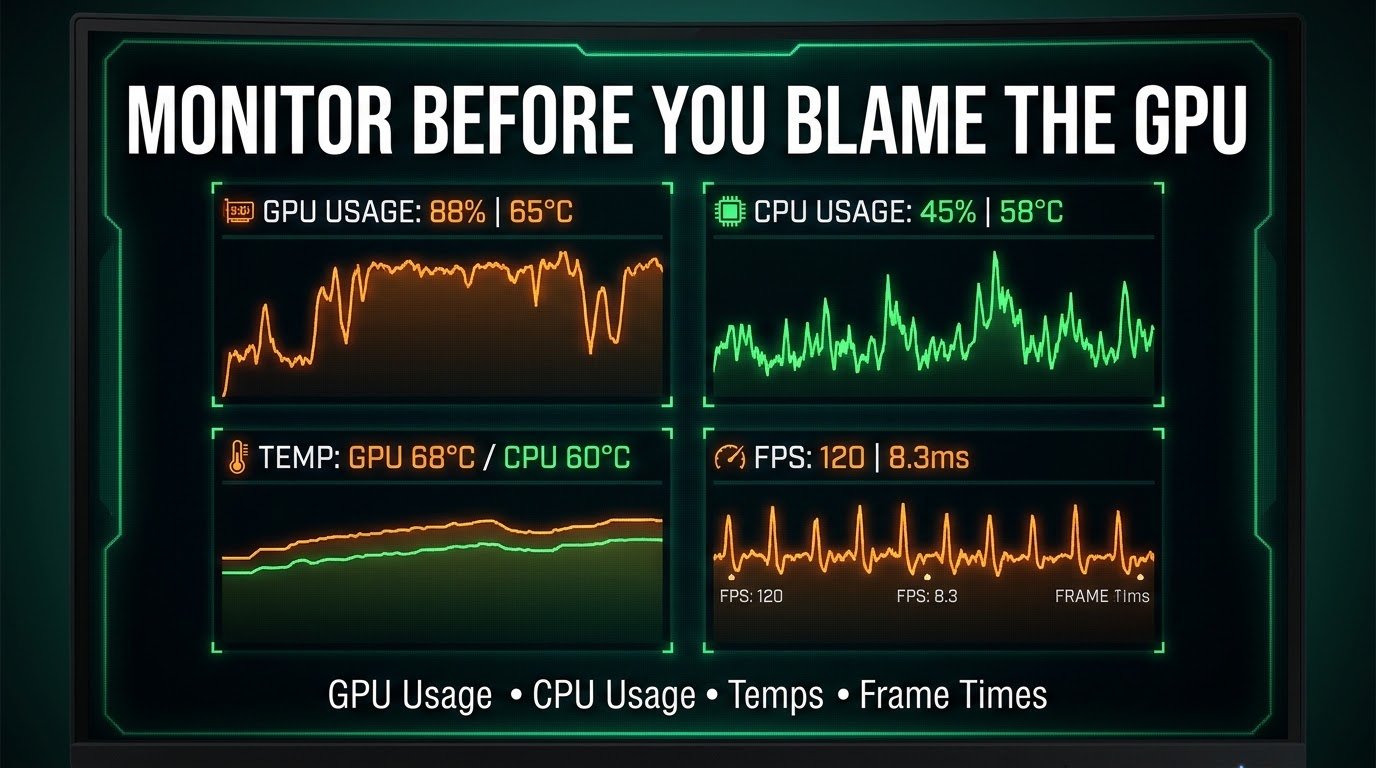
What I should’ve done immediately was install MSI Afterburner with RivaTuner Statistics Server (they come bundled together, and it’s free). This gives you an on-screen overlay showing GPU usage, CPU usage, VRAM usage, temps, and frame times while you actually play.
Here’s what to look for:
- GPU usage stuck below 90-95% while stuttering happens → something else is bottlenecking it, often the CPU or RAM.
- GPU usage pinned at 99-100% → your graphics card is genuinely maxed out, and lowering settings will help.
- Temps spiking near 85-90°C+ on GPU or CPU → thermal throttling, which causes sudden frame drops.
- VRAM usage maxed out → your textures or resolution settings are too much for your card’s memory.
In my case, GPU usage was sitting around 70% during the worst stutters. That was the clue. It wasn’t the GPU being weak, it was being starved of work.
Step 2: Check What’s Actually Starving Your GPU
Once I knew the GPU wasn’t maxed out, I started looking upstream.
Background apps were eating my CPU. I had Chrome open with about 30 tabs (we’ve all been there), Discord running with overlay enabled, and some sync software silently indexing files in the background. Closing all of that alone recovered a noticeable chunk of stutter-free performance.
Windows updates running in the background. This one’s sneaky. Windows Update can quietly download and install patches while you’re gaming, chewing through disk and CPU resources. I now check Task Manager before any serious gaming session, and if I see “Windows Modules Installer Worker” or similar processes active, I pause updates temporarily through Settings > Windows Update > Pause updates.
Drivers that were out of date or worse, corrupted from a bad install. I used Display Driver Uninstaller (DDU) in Safe Mode to fully wipe my old Nvidia drivers before doing a clean install from Nvidia’s site. This fixed stutter in two separate games that I genuinely thought were just badly optimized.
Step 3: Fix the RAM and Storage Side of Things
This part surprised me the most.
I had 16GB of RAM, which most guides said was “enough.” Technically true. But my RAM was running at a lower speed than it was rated for because I never enabled XMP (or EXPO for AMD) in my BIOS. Without it, RAM defaults to a conservative baseline speed, which can genuinely hurt performance in CPU-heavy games.
Steps I took:
- Restarted and entered BIOS (usually Delete or F2 on boot).
- Found the memory settings, enabled XMP Profile 1.
- Saved and restarted.
That single change reduced my stutter noticeably in open-world games specifically, where the CPU has to constantly stream new data.
Storage mattered too. I was running a couple of newer titles off an old mechanical hard drive out of laziness (didn’t want to redownload 100GB games). Moving those specific games to my SSD — even a basic SATA SSD, not even NVMe — killed the texture-streaming stutter almost completely. If you’ve ever seen textures pop in late or the game freeze for half a second when entering a new area, that’s very often a storage speed issue, not a GPU one.
Step 4: In-Game Settings That Actually Matter
Not all graphics settings are created equal, and I used to just drop everything to “Medium” and hope for the best. That’s inefficient.
The settings that hit performance hardest, in my experience:
- Shadows — often one of the biggest FPS costs for surprisingly little visual gain past “Medium.”
- Ray tracing / RTX — beautiful, but brutal on frame times unless you have a genuinely high-end card and DLSS/FSR turned on to compensate.
- View distance / draw distance — huge stutter source in open-world games, since the engine constantly loads new geography.
- V-Sync — can actually cause input lag and occasional stutter. I switched to enabling G-Sync/FreeSync (if your monitor supports it) instead of standard V-Sync, and it felt noticeably smoother.
- Frame rate cap — sounds counterintuitive, but capping your FPS a few frames below your monitor’s max refresh rate using RivaTuner or the in-game limiter actually reduced micro-stutter for me. Uncapped frame rates can cause erratic GPU load.
I’d recommend testing changes one at a time, not all at once. Change one setting, play for ten minutes, note how it feels, then move to the next. It’s slower, but you’ll actually know what fixed it instead of guessing.

Common Mistakes I See People Make (Because I Made Them Too)
Blaming the GPU first. It’s the most visible, most “exciting” part of your PC, so it gets blamed the most. But CPU bottlenecks, RAM speed, and background processes cause stutter constantly and get ignored.
Never checking temps. I once spent a weekend tweaking settings for a game that stuttered every 15-20 minutes like clockwork. Turned out my case had zero airflow, and the GPU was thermal throttling once it hit a certain temperature. Two extra case fans for about $25 fixed it completely.
Installing driver updates on top of old ones. Just clicking “update” in GeForce Experience or the AMD equivalent sometimes doesn’t fully clear out old driver files, especially after a big version jump. A clean install with DDU takes fifteen extra minutes and has saved me more headaches than almost anything else on this list.
Ignoring Windows power settings. If your laptop or desktop is set to “Balanced” instead of “High Performance” (or “Best Performance” in newer Windows versions), you might be leaving performance on the table without knowing it. Settings > System > Power & Battery > Power Mode.
Overlooking background overlays. Discord’s overlay, Steam’s overlay, Xbox Game Bar, Nvidia’s overlay. I had all four running simultaneously at one point without realizing it. Each one adds a small overhead, and together they added up to a real, measurable stutter in demanding games.
What I’d Do Differently If I Started Over
If I could go back to that frustrated night with the “broken” GPU, I’d skip the panic and just open Afterburner first. Fifteen minutes of watching usage graphs would’ve saved me two weeks of trial and error and a returned graphics card I didn’t actually need to return.
Stuttering rarely has one single cause. It’s usually a small pile of things, a driver that’s slightly outdated, RAM running slower than it should, a background app hogging resources, temps creeping too high. Fix them one at a time, actually monitor what’s happening instead of guessing, and most of the time the fix costs you nothing but a bit of patience.
And if after all that it’s still stuttering? At least now you’ll know exactly what’s actually maxed out and that’s a much better place to start than blaming the shiny new graphics card.