It just rebooted during the download without warning, straight to a blue screen. The words “MEMORY_MANAGEMENT” written across it.
I popped the new RAM in maybe 20 minutes ago. 2 sticks of 32GB G. Skill Ripjaws V, rated 3600MHz. The very first thing I do after the Windows welcome screen is up and running is go into the BIOS and turn on XMP – ’cause that’s what you do with new RAM, otherwise it just runs at a pathetic default speed and you might as well not even have bought it.
And now my PC was blue-screening in a matter of minutes, and I was beginning to question the wisdom of that switch.
The First Instinct: Blame the RAM
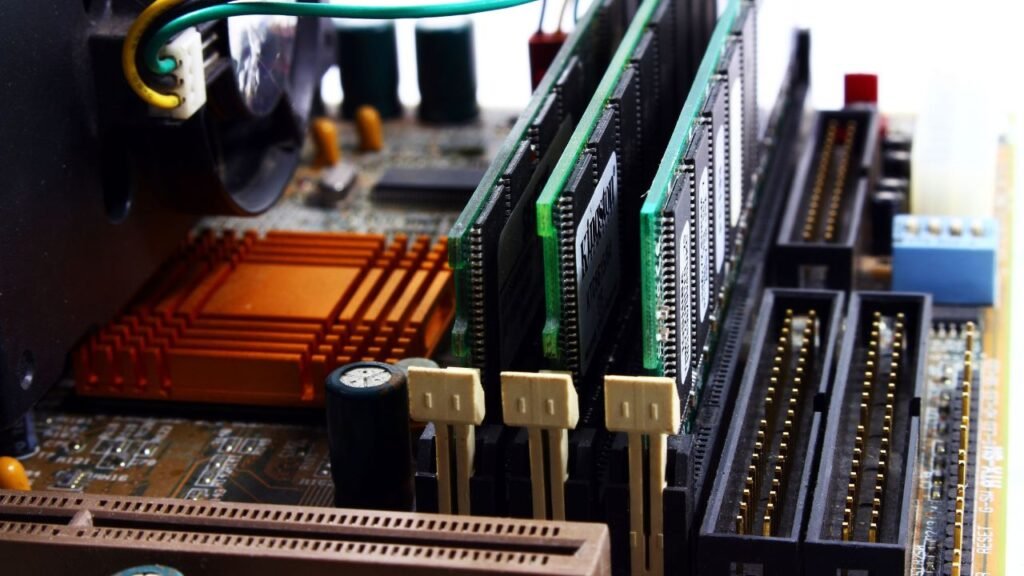
My brain immediately went to “broken kit”. New parts do go bad sometimes, and frankly that just seemed like the simplest explanation. I reseated both of the sticks, cleaned the contacts with a pencil eraser like some old forum post suggested, stuck each stick in different slots.
Single stick, slot A2, still crashed. Different stick, same slot, still crashed, just longer this time, probably about 15 minutes into a gaming session before it blue screened again.
By now, I was pretty sure I had a faulty kit. I visited the retailer’s return page and even entered an answer to the question ‘You are returning this product because’ as ‘Item defective or doesn’t work’ and was about to do the next step to ask for a full refund when I decided to see if I could troubleshoot the problem. Good thing I paused there.
Turning XMP Off Told Me Something Important
I booted back into the BIOS, turned off XMP entirely, kept the RAM on the default JEDEC profile (sitting at 2133MHz, not 3600 on this kit). I did this for a day. Gaming, browsing, multiple long Discord calls running as background noise.
Crashes? Not a one.
That eliminated a fully dead kit. Dead RAM doesn’t suddenly be perfect just because you lower its speed, it is or it isn’t, no matter how slow. What I actually had was a stability issue that was specifically related to being at the rated speed, that’s not the same as faulty hardware.
The Motherboard Detail I’d Been Ignoring
My motherboard is an ASUS ROG Strix B660-A Gaming WiFi, with a 12th gen Intel chip. I’d purchased this motherboard about eight months before upgrading the RAM, and I honestly hadn’t done a thing with the BIOS that I installed it all those months ago. I didn’t update the BIOS. I didn’t think about doing that.
Learned that the hard way more than I thought. Intel platforms do rely a lot on the motherboard’s memory controller support tables to understand how to properly drive faster RAM kits, and BIOS updates are often updated with new memory support tables for precisely that.

Checking the BIOS Version
I entered BIOS, found the version number on the main screen. It was on the build from almost a year earlier, many revisions behind the latest ASUS build.
I went to the support page for my exact model board, downloaded the newest BIOS file onto a USB formatted FAT32, and flashed it using ASUS EZ Flash from within the BIOS. That took maybe ten minutes all-in, mostly sitting around waiting for the flash to complete and for it to reboot. You can also read:
- Why Mobile Esports Still Hasn’t Reached Mainstream Legitimacy, Despite Bigger Prize Pools Than Ever
- Is Cloud Gaming Worth It in 2026? Xbox Cloud vs GeForce Now vs Luna (My Honest Take)
A Second Mistake Concealed Within There As Well
Once the BIOS had been updated, I revisited the setting to enable XMP, and realized something that had completely escaped me the first time around. Instead of a simple XMP enable/disable switch like I expected, there were actually two options listed: XMP I, and XMP II.
Somehow I’d obviously selected profile II the first time without even considering it as an option in my head. Profiles II and I in this kit are higher secondary timings aimed at providing additional overclocking headroom to RAM rather than being a truly daily driveable profile. Profile I was the one that was tested and validated for the kit’s rated 3600MHz.
Trivial. Could be easily overlooked when you’re merely pressing buttons and clicking through BIOS screens with less than half your brain engaged, which is precisely what I did.
Running It the Right Way
Now that I had the BIOS and chose Profile I rather than II, I rebooted and simply monitored Task Manager while letting the system sit for a while, this time with memory sitting at 3600MHz (the speed I expected it to run at) rather than the fallback.
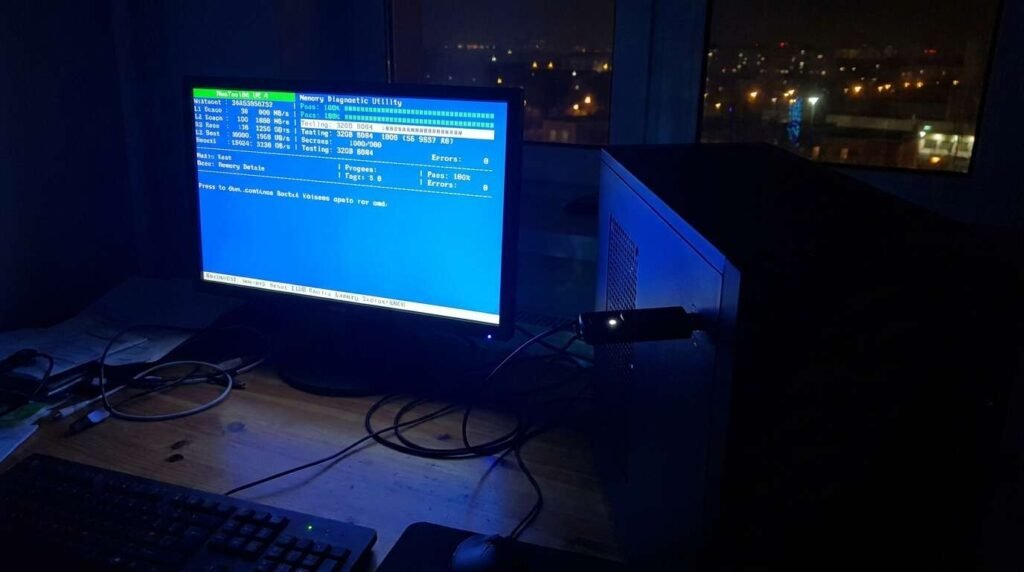
I let the system run overnight stress test with MemTest86 (booted from different USB drive). 8 full passes and 0 errors. That is generally what most folks recommend as a solid minimum threshold before trusting memory configuration.
Then returned to real gaming, the thing I bought it for in the first place rather than chasing blue screens for 2 days solid. No instability, no failures. Five weeks on and it’s been perfectly stable for long gaming sessions at 3600MHz, Profile I, each and every time.
What I’d Say To Someone Who Is Returning Their RAM
If your blue screen begins immediately upon enabling XMP, don’t immediately jump to conclusion that your sticks are damaged and check these two things before.
Verify your current BIOS revision with the latest at the motherboard support page. If you’re more than a few revisions behind, that can result in precisely this sort of instability with newer, higher speed RAM kits, particularly those above 3200MHz.
And in fact, actually check what XMP profile you’re using if your board has more than one choice. Don’t just check the first toggle labeled “enable” and assume that’s all you need to do.
Actually I think it was eight or nine BSODs altogether after two days of doing my head in before I finally got this sorted and that seemed like quite a lot at the time, when it was all nothing to do with the RAM really being dodgy.
If you’ve already initiated a return process, like I nearly did, it might be worth putting that on hold and trying this first. Would have saved me the little scare of thinking I had been duped by a bad kit, when it turns out all I did was neglect to update a BIOS for eight months and miss clicking the right menu.
A separate fix for other unexpected intermittent hardware problems If this guide isn’t helping to fix RAM instability and you’re seeing intermittent hardware issues like input lag or drift on a game controller or other peripheral, I also have another guide about how to fix controller stick drift without replacing the whole thing.