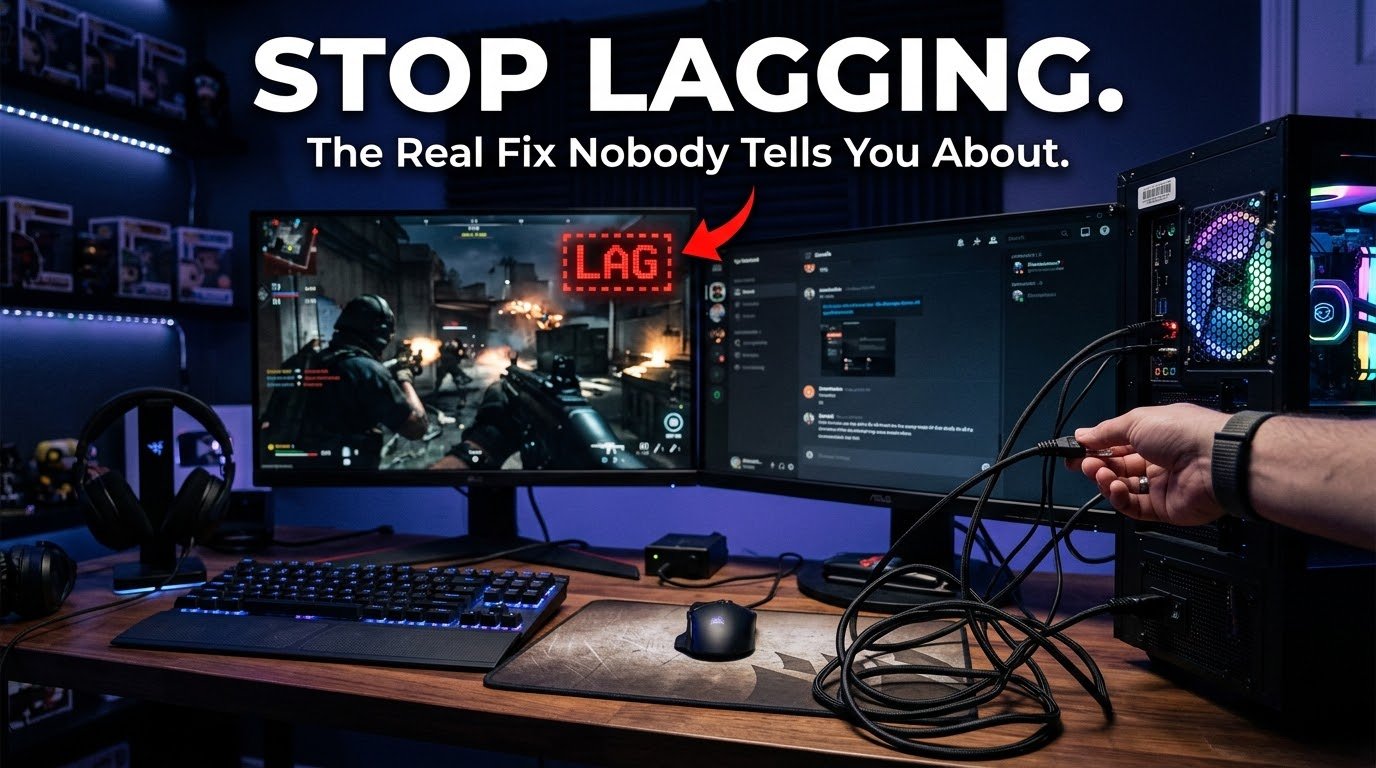
I still remember the exact moment I lost a ranked match in Valorant because my screen froze for two seconds right as I was clutching a 1v3. I peeked, saw nothing, got sprayed down, and my Discord friends started laughing because on their screen I had literally just teleported into the open. That was my “okay, I need to fix this” moment. I spent the next few months testing routers, cables, settings, and a stupid amount of forum threads until I actually understood what was going on. This guide is everything I wish someone had just told me on day one, instead of me learning it the hard way.
Wait, is it ping or is it lag?
People use these words like they’re the same thing, and honestly for years I did too.
Ping is basically how long it takes for a signal to travel from your PC or console to the game server and back. It’s measured in milliseconds. Lower is better. Under 30ms feels instant. Anything above 100ms starts to feel sluggish, and past 150-200ms you’re basically playing a slideshow in fast-paced shooters.
Lag is the symptom you actually feel stuttering, rubber-banding, enemies teleporting, your shots not registering. High ping is one cause of lag, but not the only one. Sometimes your ping looks fine and you’re still lagging, which took me way too long to figure out. That usually means the problem isn’t your connection to the server, it’s something happening locally, like packet loss or your own hardware choking.
The first mistake almost everyone makes
I used to think buying a “gaming router” would magically fix everything. I dropped a decent chunk of money on one because a YouTube ad convinced me it had “gaming mode” and RGB lights, so it had to be good, right?
It helped a little. But my actual problem was that I was playing on WiFi from two rooms away, through a wall, with my microwave sitting right next to the router. No router setting fixes physics. That leads me to the single biggest thing that changed my experience.
Step 1: Get off WiFi if you possibly can
I know, I know, running a cable is annoying. But this made a bigger difference than literally anything else I tried.
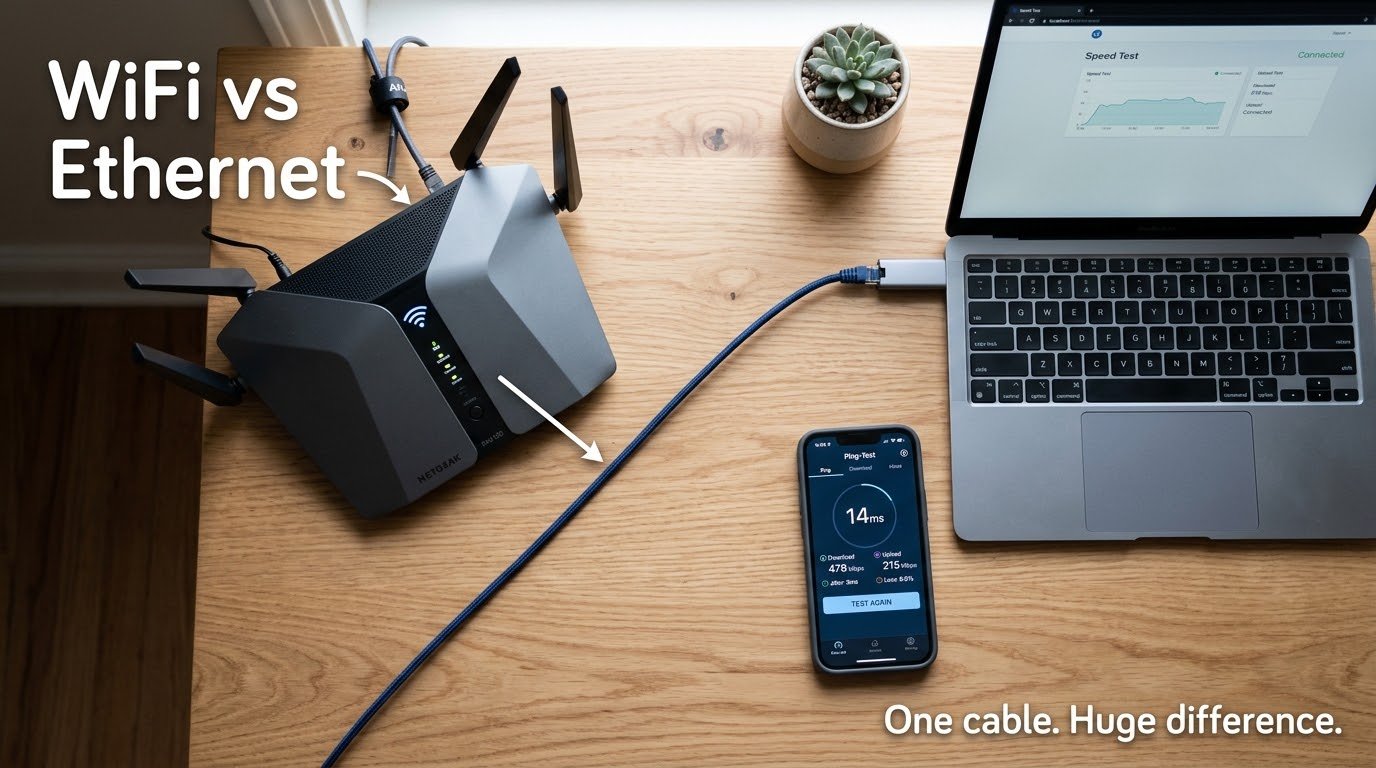
I ran a 15-meter Ethernet cable along the wall trim from my router to my PC, and my ping in the same games dropped by 15-20ms just from that, plus the random spikes almost completely disappeared. WiFi is inherently less stable because it’s shared bandwidth and it’s affected by walls, other devices, your neighbor’s WiFi, even your microwave running.
If running a cable across your whole place isn’t realistic, a couple of decent options:
- Powerline adapters (plug into your wall outlets, uses your home’s electrical wiring) not as good as a direct cable, but noticeably better than WiFi in most homes.
- A mesh WiFi system if you’re stuck on wireless, since it handles interference better than an old single router.
Step 2: Actually test your connection before guessing
Before changing anything, I’d suggest running a proper test so you know your baseline. I use speedtest.net for general speed, but for gaming specifically I check ping and packet loss using PingPlotter or just a basic command prompt trick.
On Windows, open Command Prompt and type:
ping 8.8.8.8 -t
Let it run for a minute. If you see occasional huge spikes or “Request timed out,” that’s packet loss, and that’s often the real villain, not just average ping.
Step 3: Check what’s actually eating your bandwidth
This one embarrassed me a little. I was troubleshooting my ping for a week convinced my ISP was the problem, only to realize my roommate was seeding torrents in the background 24/7. Any device downloading updates, streaming 4K, or backing up to the cloud will absolutely wreck your ping during a match.
Quick fixes:
- Pause Windows Updates and Steam/Epic downloads before you play.
- Ask housemates to hold off on Netflix marathons during your ranked session (fair warning, this conversation doesn’t always go well).
- If your router supports QoS (Quality of Service), turn it on and prioritize your gaming device. Most modern routers, including a lot of TP-Link and Asus models, have this built in under advanced settings.
Step 4: Pick the right server, manually if you can
Some games auto-select servers based on “best ping,” but I’ve noticed this isn’t always accurate, especially right after a game update. In Valorant and CS2, you can manually lock your server region in the settings. I switched from an auto-selected regional server to the one physically closest to me and shaved off almost 25ms.
If you’re not sure which server is actually closest, a quick search for your game’s server locations plus a ping test tool will tell you.
Step 5: Restart your router more than you think you need to
This sounds too simple to matter, but routers accumulate junk in memory over days of uptime, especially cheaper ISP-provided ones. I restart mine once a week now on a schedule, and honestly, my connection just feels more consistent.
Step 6: Watch out for background apps on your own PC
This one caught me off guard. I had Discord, Chrome with 30 tabs, and a cloud backup app all running while gaming, and even though my internet was fine, my in-game performance was choppy. Turns out it wasn’t network lag at all, it was my CPU and RAM struggling to keep up.
Before a serious gaming session, I now close unnecessary background apps, and if I’m streaming or recording, I make sure my PC can actually handle the load without choking the game itself.
Should you use a “gaming VPN”?
I tried one of these (ExitLag, in my case) during a phase where my ISP was routing my traffic through a genuinely weird path to a specific game’s servers. It actually helped in that one situation, shaving off noticeable ping by finding a more direct route.
But I want to be honest here: it’s not magic, and it won’t help everyone. If your baseline connection is already solid and taking a normal route to the server, a routing tool like this can sometimes make things worse, not better. Worth testing with a free trial before paying for a subscription, and never expect it to fix a fundamentally weak internet plan.
Common mistakes I see people make (because I made most of them too)
- Blaming the game when it’s actually a background download hogging bandwidth.
- Assuming a more expensive router fixes a WiFi placement problem.
- Never actually testing packet loss, only checking the average ping number.
- Playing on a server that’s technically “recommended” but not actually the closest.
- Ignoring their own PC’s CPU/RAM usage and assuming every stutter is network-related.
- Forgetting that other people on the same network affect your game too.

A few extra things worth checking
If you’re on console, make sure you’re not accidentally on a metered or overloaded WiFi extender. Also check if your ISP offers a low-latency or gaming-focused plan; a few providers now advertise this specifically, and it’s worth a phone call to ask.
If you’re consistently getting high ping to every server, not just one game, that’s usually a sign the issue is upstream with your ISP itself, and no local fix will fully solve it. In that case, it might genuinely be time to look at other providers in your area, if you have that option.
Final thoughts
None of this stuff fixed everything overnight for me. It was really a process of eliminating one variable at a time cable instead of WiFi, checking what else was using bandwidth, picking the right server, keeping my own PC lighter while gaming. Each change shaved off a little more lag until my games actually felt smooth again.
If you’re dealing with laggy matches right now, don’t just throw money at a new router hoping it solves everything. Start with the free stuff: test your connection, check what’s running in the background, plug in a cable if you can. You’ll probably find your actual culprit is something way simpler than you expected, mine definitely was.