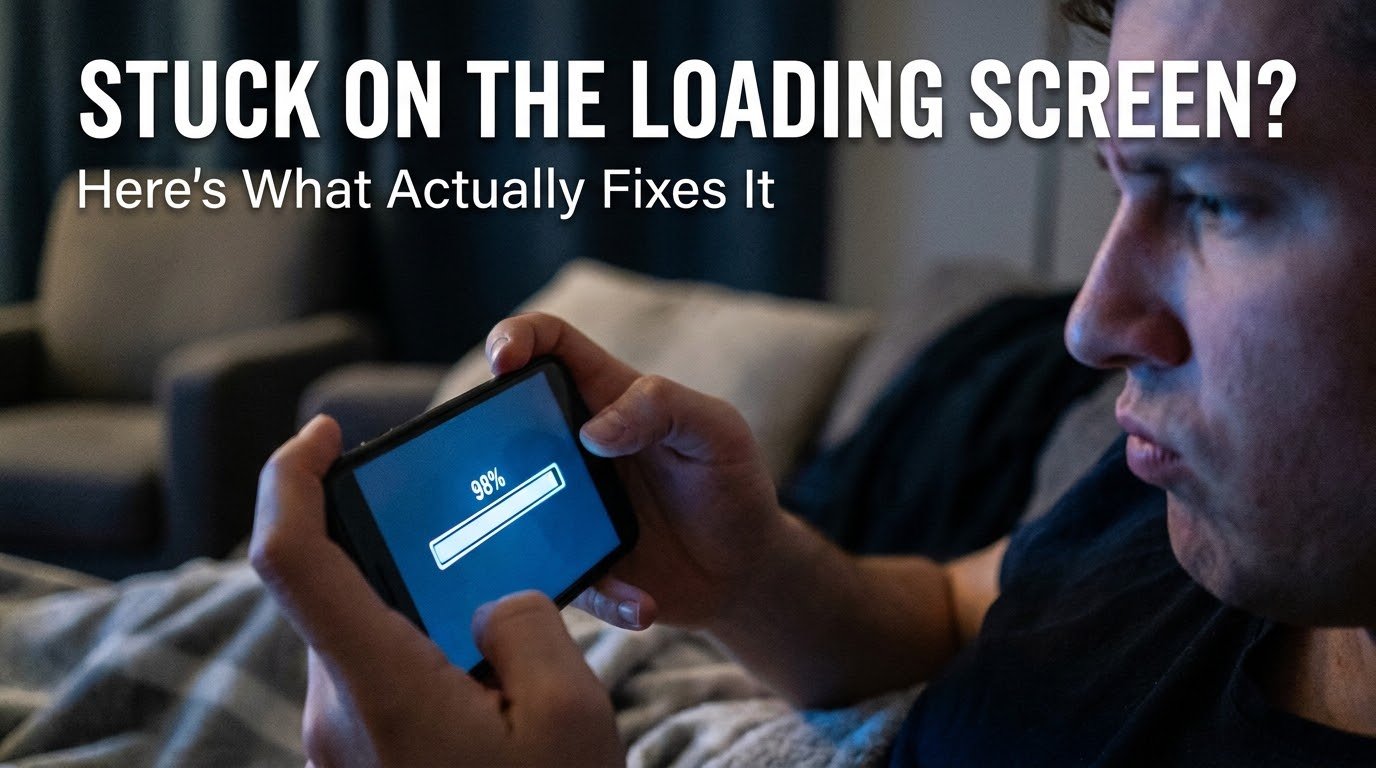
98%. That’s where the progress bar sat for eleven straight minutes while I stared at my phone like it owed me money.
I’d already uninstalled and reinstalled the game once, force closed it about six times, and restarted my phone twice, and it was still stuck at that exact same percentage every single time. At that point I genuinely wondered if the game itself was just broken.
It wasn’t. Turns out the fix had nothing to do with the game at all, and once I understood what was actually happening behind that loading screen, I stopped panicking every time it happened again with other games.
Why Mobile Games Get Stuck On Loading Screens In The First Place
A loading screen isn’t just a random waiting animation. Behind it, your phone is downloading additional game assets, verifying files, connecting to game servers, and sometimes syncing your save data, all at the same time.
When any single part of that process fails or stalls, the loading screen just sits there indefinitely instead of showing you an actual error message. That’s honestly the most frustrating part. Most mobile games give you zero indication of what’s actually wrong, so you’re left guessing.
In my experience, it usually comes down to one of a handful of specific causes, and once you know what to check, fixing it stops being a mystery.
The Wrong Assumption I Kept Making
For a long time, I assumed a stuck loading screen meant something was broken on the game’s end, like a server issue completely out of my control. Sometimes that’s true, but way more often than I expected, the actual problem was sitting on my own phone the whole time.
Once I stopped immediately blaming the game’s servers and started actually checking my own device first, I fixed this issue in minutes instead of restarting my phone repeatedly and hoping for the best.
Step-by-Step Fixes That Actually Worked For Me
Step 1: Check Your Internet Connection Properly (Not Just Glancing At The Bars)
This sounds obvious, but I mean actually testing it, not just looking at your signal icon. I’ve had full WiFi bars while my actual connection was barely functioning.
Open a browser and try loading a random website, or better yet, run a quick speed test through an app like Speedtest by Ookla. If your connection is unstable or extremely slow, that’s very likely why your game is frozen mid-load.
Switching from WiFi to mobile data (or vice versa) has fixed this for me more times than I’d like to admit. Sometimes the specific network you’re on is the actual issue, not your phone or the game itself.
Step 2: Force Close The App Completely, Not Just Minimize It
Swiping the game to the background isn’t the same as actually closing it. Open your recent apps view and swipe the game away completely, then relaunch it fresh.
I used to just press the home button and reopen the app, which doesn’t clear whatever process got stuck. Fully force closing it clears that stuck state far more reliably.
Step 3: Clear The App’s Cache (Not The Data, Just The Cache)
This is where I made my first real mistake early on. I went into my phone’s app settings, found the game, and cleared everything, cache and data together, without realizing that would wipe my local save progress along with it.
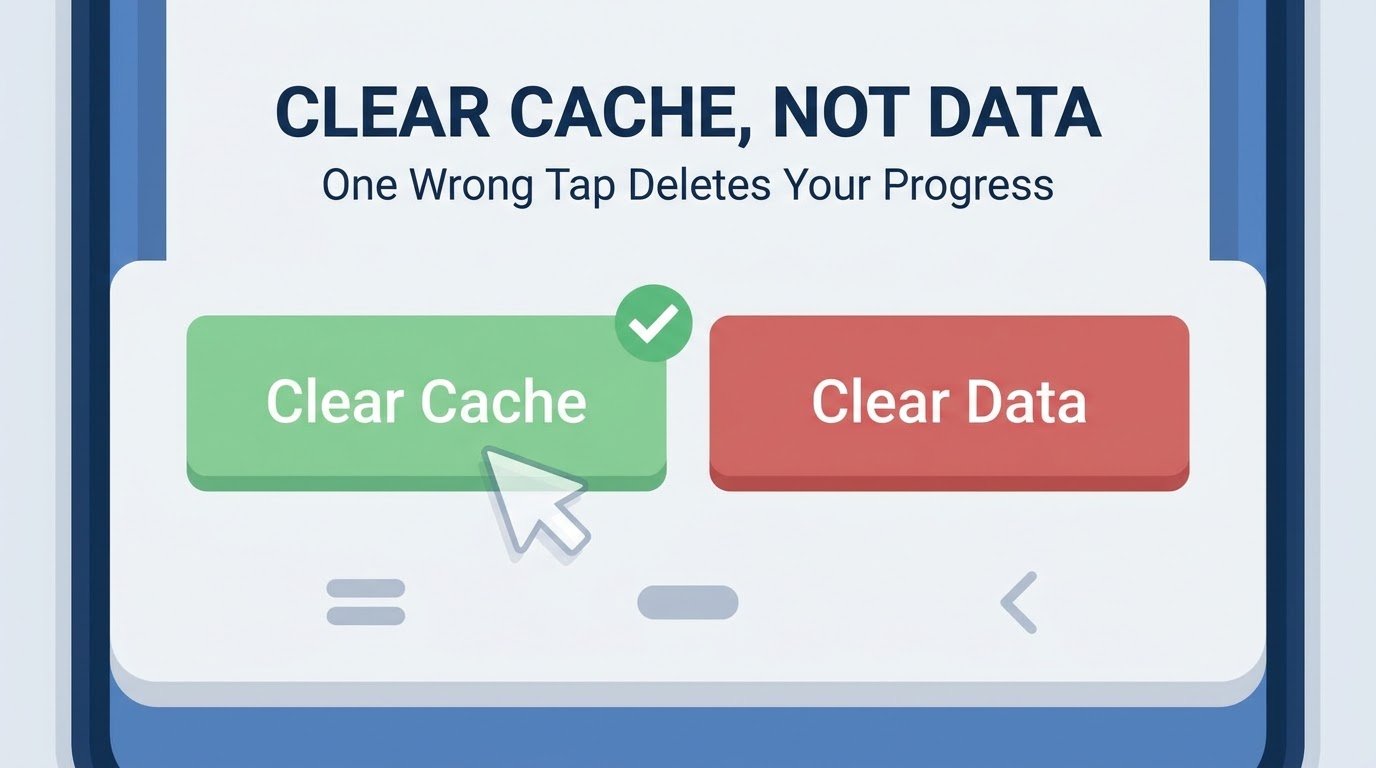
Do this instead: go to Settings, then Apps, find your game, tap Storage, and clear only the Cache, not the Data. This removes temporary corrupted files without touching your actual save or login information.
After doing this properly, a stuck loading screen has resolved itself almost every time for me since.
Step 4: Check For Available Storage Space
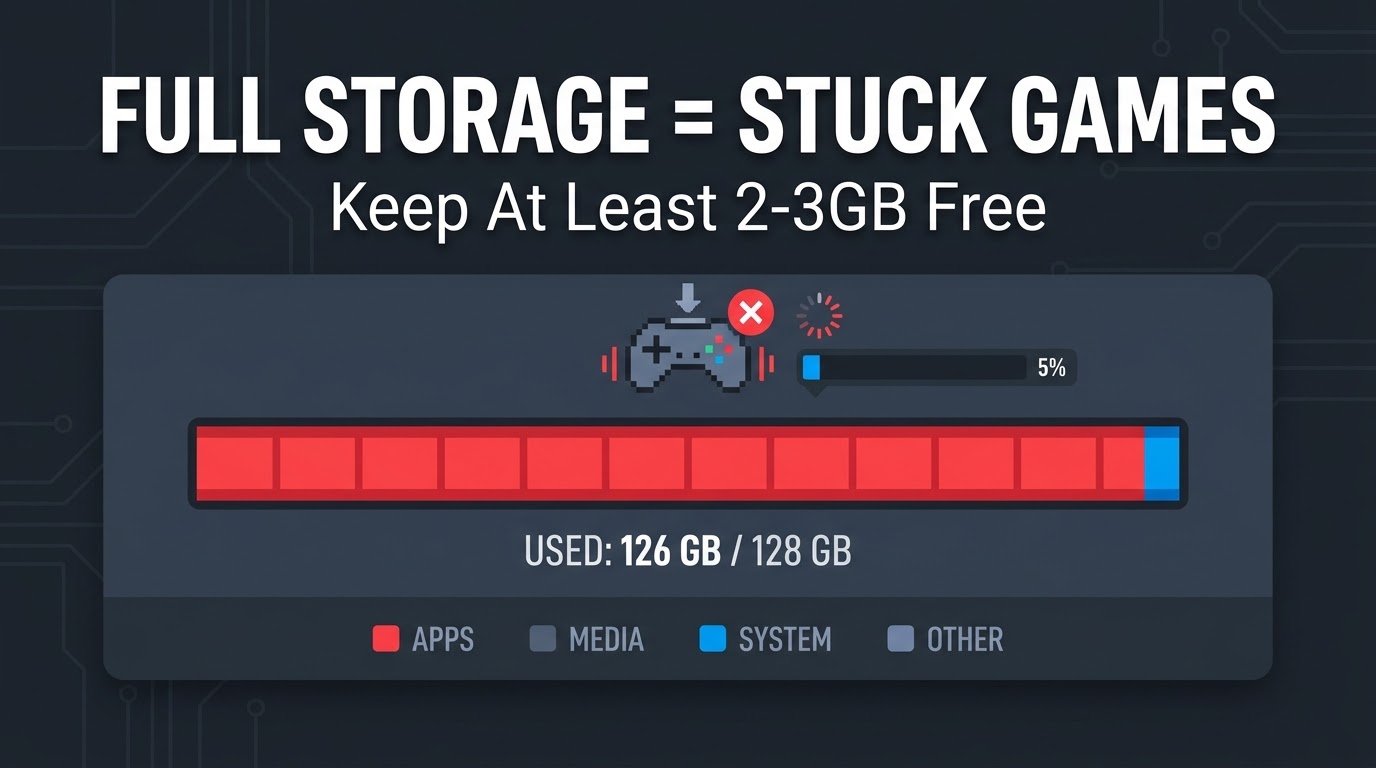
I didn’t realize this was connected until it happened to me directly. Games need free space to download and unpack loading assets, and if your phone’s storage is nearly full, the loading process can stall without any warning or error message.
Go to Settings, then Storage, and check how much free space you actually have. I like to keep at least 2-3GB free at all times specifically for gaming, since a lot of live-service games download extra assets during loading screens without telling you upfront.
Step 5: Update The Game (Even If Auto-Update Is Supposedly On)
I assumed my games were always updating automatically in the background. Turns out auto-update settings can silently fail, especially if you were on mobile data when an update was supposed to download, or if you paused updates once and forgot to turn them back on.
Manually check the Play Store or App Store, search for your specific game, and confirm you’re actually on the latest version rather than assuming.
Step 6: Restart Your Phone (But Actually Restart, Not Just Lock The Screen)
I know this feels like the classic “have you tried turning it off and on again” advice, but there’s a real difference between locking your screen and doing a full restart. A proper restart clears background processes and temporary memory issues that can interfere with loading.
This alone fixed the stuck loading screen for me on more than one occasion, especially after my phone had been running for several days without a restart.
Step 7: Check If The Game’s Servers Are Actually Down
Sometimes it genuinely isn’t your fault. Before doing anything drastic like reinstalling, check the game’s official social media accounts (Twitter/X is usually fastest for this) or a site like DownDetector to see if other players are reporting the same issue.
I wasted almost thirty minutes troubleshooting my own device once during an actual server outage that had nothing to do with me at all. Checking this first would’ve saved me all that time.
Step 8: Reinstall As A Last Resort
If nothing else works, uninstalling and reinstalling the game is genuinely the last step, not the first one most people jump to. Before doing this, make sure your account is properly linked to an email, Google account, or Game Center, otherwise you risk losing your progress entirely.
I learned this lesson painfully once with a different game where I hadn’t linked my account, and reinstalling wiped weeks of progress. Now I always double check account linking before ever uninstalling anything.
A Real Example From My Own Experience
That eleven-minute stuck loading screen I mentioned earlier turned out to be a combination of two things: my storage was down to less than 500MB free, and my WiFi connection was quietly dropping in and out without me noticing since my signal bars still showed full strength.
I freed up about 4GB of storage by deleting unused apps and old downloaded videos, switched to mobile data temporarily, and the game loaded completely within about ten seconds. Ten seconds, after eleven minutes of frustration and multiple unnecessary reinstalls.
An Unexpected Connection: Overheating Can Cause This Too
This one genuinely surprised me. During a hot afternoon gaming session, my phone got noticeably warm, and shortly after, a game got stuck loading in a way that felt eerily similar to my storage-related issue before.
Turns out overheating can cause your phone to throttle background processes, including whatever’s happening during that loading sequence, which can cause it to stall out entirely. Once my phone cooled down, the same game loaded normally without any other changes.
If you’re someone who games for extended periods and deals with overheating regularly, it’s worth looking into proper cooling accessories. I actually covered some solid affordable options in Best Cooling Fans and Accessories for Mobile Gaming, which has helped me avoid this exact overheating-related stall happening as often since.
Common Mistakes People Make
Clearing app data instead of just cache. This wipes your progress unnecessarily when clearing cache alone usually solves the same problem.
Assuming it’s always a server issue. Sometimes it is, but way more often the actual cause is sitting on your own device.
Ignoring storage space until it’s almost completely full. Games need breathing room to download loading assets properly.
Reinstalling immediately without checking account linking first. This risks losing progress entirely if your account wasn’t properly saved beforehand.
Not actually testing the internet connection, just glancing at signal bars. Full bars don’t always mean a stable, functioning connection.
Final Thoughts
A stuck loading screen feels like a dead end when you’re staring at it, but it’s almost always fixable once you actually understand what’s happening behind the scenes. For me, it came down to storage space and a flaky WiFi connection disguised as full signal bars.
Next time this happens, work through these steps in order instead of immediately jumping to uninstalling everything. Check your connection properly, clear just the cache, confirm you’ve got enough storage, and restart your phone fully before assuming the worst.
Most of the time, the fix takes a few minutes once you know what you’re actually looking for, and you’ll spend a lot less time staring at a frozen progress bar wondering what went wrong.
For official troubleshooting steps specifically related to app performance issues, Google’s own Play Store troubleshooting guide is worth checking if you’re still stuck after trying everything covered here.