Three years ago I was hanging out in my hostel room with a gaming laptop that was trying to display my desktop wallpaper, and not successfully, but was having a lot more difficulty while trying to run the latest version of Grand Theft Auto V. I was just sitting back and watching videos of other people playing it on YouTube. That hurt.
I could not afford a new laptop. I could not afford an external GPU either. What I did have was plenty of free time, a cocky attitude, and a desire to get things wrong before I arrived at the right solution.
This article is all of those things I wish I had known before, minus the trial and error that cost me weeks of time.
First, let’s Get Real about “Low-End”
First of all, go to Task Manager (Ctrl+Shift+Esc) and take a look at your specifications. For your specs, take a look at your RAM, your processor, and if you’ve got a devoted graphics card or you’re simply working built-in graphics (Intel UHD, Intel HD, or an previous AMD APU).
You’ve got 4GB RAM/8GB RAM, no dedicated GPU, and a processor that’s 5+ years old. I was with you. That doesn’t mean you can’t game. It does mean you need to be a little careful about which games you play and how you go about playing them.
I discovered this myself when I attempted to install Cyberpunk 2077 on the ancient laptop. It didn’t even start. Three hours of download time (on a slow hostel Wi-Fi connection) down the drain.
Step 1: Stop Chasing AAA Games
My worst mistake, though, was launching some of my favourite titles that were clearly designed for gaming PCs with dedicated graphics. Sure, you can cap them to as low as you like, but whether it’s Red Dead Redemption 2, Elden Ring or a new Call of Duty, they weren’t designed for integrated graphics.
Look for games that were designed with lower-end hardware like:
- CS:GO or CS2 (Much heavier, but at lowest settings) on CS2
- Minecraft (Java Edition runs fine on pretty much anything with 4GB+ RAM)
- GTA San Andreas or GTA IV
- Stardew Valley
- Rocket League (older versions run smoothly on lower-end setups)
- League of Legends
I really didn’t want to say this at first because I love sitting back and playing the newest, most expensive games. But as soon as I let myself and played anything built for my machine, I was back to having a good time instead of watching load screens.
Step 2: Reduce Your Resolution Before any other change, because resolution has the most drastic effects
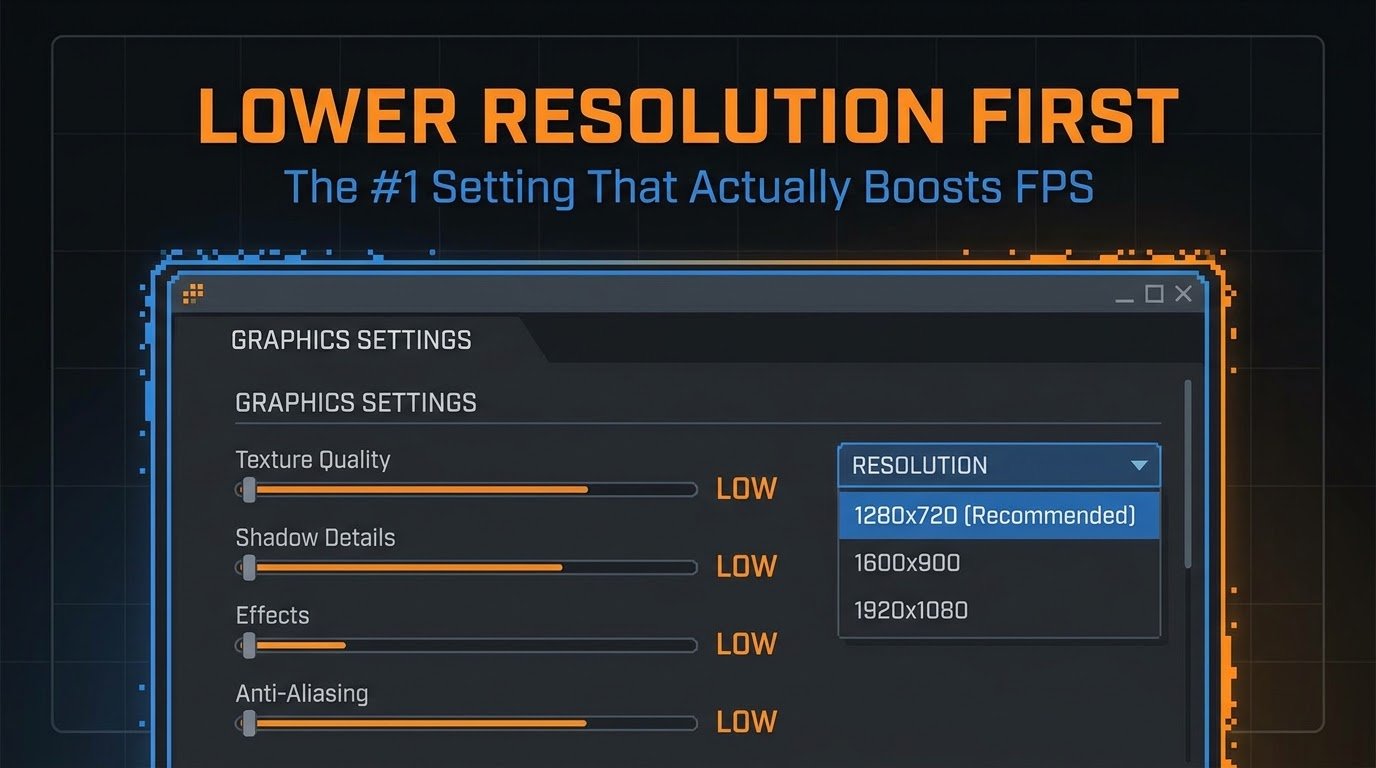
Most people hit the graphics menu and immediately reduce texture quality and even shadows, but resolution is the single largest graphics consumer on underpowered hardware.
Here’s what I did: I lowered my laptop resolution (1366×768 or 1920×1080) down to 1024×768 or even 800×600 in the game video options and set them there. Sure, the image is a little more blocky but the frame rate boost is staggering. I often jumped from a sluggish 8-10 fps up to a playable 30+ fps.
I understand it can seem weird to intentionally sabotage your game. I fought against this for a long time because I thought the whole point of the article was broken. But it isn’t. A little bit blurry game at 30fps is better than a sharp slideshow at 8.
Step 3: Use Software That Actually Helps
There are three tools I truly used and trust:
Steam (or Beta Branches) – There are a few older games on Steam that have legacy or low spec versions that you can choose to play, there’s a dropdown in the properties tab of the game. You can find these by right clicking the game, then selecting properties and going to betas.
MSI Afterburner – If you don’t have a dedicated GPU, this will show your temperatures and usage constantly. It alerted me to the fact my laptop was actually throttling due to high temperatures rather than the game being too intensive.
Razer Cortex (Game Booster) – This automatically shuts down background processes when you open a game. I was initially suspicious of this because it felt like an unnecessary add-on, but it actually cleared up a solid chunk of my RAM on my ancient PC.
Playnite – Free game launcher that organizes everything for you and lets you see what actually works and what doesn’t.
Step 4: Clean Your Laptop Before You Blame the Game
Here’s the part no one tells you. 50 percent of all the “My laptop can’t play this game” issues are not really about the game. They’re about your laptop being full of crap.
Here’s what I do BEFORE I start anything requiring:
- Close all your browser tabs. Just 10 open tabs in Chrome can consume 2GB of RAM.
- Disable the Startup programs that you don’t need (Task Manager > Startup tab).
- Run Disk Cleanup to clear temporary files.
- Update your driver, even if it is on the GPU integrated through the official one from Intel or AMD.
- Choose “High Performance” instead of “Balanced” or “Power Saver” under your power plan.
That last one really caught me off guard. Changing the power plan alone increased my frame rate because Windows was limiting my CPU due to battery saver default.
Step 5: Ditch the Local Installs and Move to Cloud Gaming
This was a game-changer for me when I started taking it seriously. You don’t play games on your lesser laptop, you stream them from high-powered servers. Your laptop just has to be good at watching videos, which just about any laptop can do.
I tested a few:
- GeForce NOW – Stream your existing Steam or Epic game collection. Free has session limits but is very usable.
- Xbox Cloud Gaming – This is part of Xbox Game Pass Ultimate and it performs surprisingly well inside a web browser.
- Boosteroid – Paid but cheaper than most, and I found it stable for less demanding titles graphically.
The disadvantage is that you need a reasonable quality of internet. I was on 15 Mbps and this worked, but anything under 10 Mbps gave me lag and a lot of blur when moving fast. This is probably not a good solution if you already have dodgy Wi-Fi.
You can also read:
- Why Mobile Esports Still Hasn’t Reached Mainstream Legitimacy, Despite Bigger Prize Pools Than Ever
- Is Cloud Gaming Worth It in 2026? Xbox Cloud vs GeForce Now vs Luna (My Honest Take)
What I did wrong (So you don’t have to)
It can also help you decide if a game is worth chasing or if it’s simply not possible: Defining the results of your $50 budget to drive or DYI 6. Budget and savings were sandwiched between exposure to work and being in the car or at home exploring how games build their budgets. Sharing money involves being vulnerable to the other person, highlighting, no matter how you are. Does reading require time and money.41• Free zymrszzxxsszgg.
Avoid background updates. Many times, Windows Update has silently installed updates in the background during my gaming sessions, killing my frame rate. Make it a habit to pause your updates before your next gaming session.
Making the game the scapegoat when it was a launch problem. There are a lot of games that you may not be able to launch at all and that problem is not related to the performance of any gaming hardware you have. With a game that simply refuses to launch or crashing immediately after you open it, it is often related to a file corruption issue, driver, or program compatibility problem and not to a hardware limitation. I had to go through a similar process and outlined everything that resolved my issue in How to Fix Games That Won’t Launch on Windows after having to re-install the game three times before I realized I just had to turn off Compatibility Mode.
Trying to do too much. I was going to play the same games as my friends with outrageously powerful computers. That expectation was going to kill me. Once I stopped comparing to that, I was able to start enjoying gaming again.
A Realistic Example
My real setup which started to run it: Intel core i3, 4GB RAM (upgraded to 8GB later, which was actually the single best cheap upgrade I did on this machine), and Intel HD 4000 graphics. Running CS:GO at 40-50 fps maxed on low and 900×600 resolution, Valorant at 60 fps maxed on low, and GTA San Andreas maxed with no sweat.
That’s not insignificant. I logged hundreds of hours on that system before I could upgrade to something more powerful.
Before You Go
Gaming on a low-end laptop isn’t about living in denial that you have a gaming PC. It’s about dealing with what you’ve got and having a genuine good time in spite of what limitations you face. I wasted too much time being annoyed when I could have been just setting my expectations and changing a few settings.
Same place I was? Keep it simple. Grab a single lightweight game, try a few of these modifications, and watch your system get one step closer to playing a game you haven’t played in ages. You’ll be surprised how much life you can get out of a “useless” laptop people told you to toss.
Another more general guide to overall PC performance improvements from Microsoft itself is also worth a glance if you’re feeling overwhelmed with what Windows adjustments to make.