I thought I had the round. I was in the middle of a heated Valorant match, had the enemy exactly where I needed him, and then… my monitor just froze. Absolutely stopped. I was staring at the exact same still frame while the round slipped away before the game managed to catch up again.
I just opened Task Manager (frustrated by now, I might add) and saw that my CPU was 98%. Not my GPU. My CPU. I was thrown off by this a little bit initially as I’d always assumed it’d be the graphics card having an issue, not the CPU.
I was wrong after all, and that mistake led to many frustrating gaming experiences before I realized what was really happening.
If your fans are screaming, your game is chugging, and the Task Manager shows your CPU being hogged while gaming, this one’s for you. I have been through this very same mess and fixed it without a single rupee spent on new hardware.
Why Does CPU Usage Peak When Gaming In The First Instance?
What is actually going on though, might be good to understand before jumping to fixes: Your CPU (processer) takes care of the “thinking” part in game physics calculations, AI, loading assets and background jobs. Your GPU (graphics card) takes care of the “drawing” part, rendering the visuals, textures and frames you see on screen.
CPU’s running at 90-100% I’ll get to this in a moment but if your CPU’s rising up to 90-100% that’s because you’re pushing your CPU to the max, and it’s simply not fast enough to cope with everything you’re sending to it. This is a bottleneck and your high-end GPU is just sitting there, waiting to be fed data, which is kind of absurd when you think about it.
In fact, I got so deep into this topic trying to determine which was more important for gaming performance, I actually wrote up a whole article that pits the two against each other, explaining everything there is to know about CPU vs GPU for Gaming: Which One Actually Matters More.
My First (Wrong) Assumption
Initially, I saw the high CPU usage and my initial thought was: “Oh, my CPU is too weak and I should upgrade.” I almost bought a new CPU on installment before one of my PC-Wiz friends, who is actually decent with computers, stopped me and asked a really simple question: “Have you actually looked at what’s running in the background?”
Nope. I actually had 14 Chrome tabs open, Spotify, a Discord call, and an update. Open all at once without even realizing it.
My CPU was not weak. It was just overwhelmed. Lesson learned: check before you spend money.
How To Fix It For Real
Step 1: Take a Peek to See What’s Eating Your CPU
Open Task Manager (Ctrl+Shift+Esc), then under the Processes tab, sort the list by CPU usage. Only do this when the game is running, not before.
You’ll likely be surprised at what turns up. For me it was 20% for Chrome, 8% for Windows Search Indexing and a random updater I didn’t even recall installing.
Step 2: Exit Background Apps Before Starting Your Game
Yes that seems like an obvious thing to do, but I actually did not do this for months. It is now a habit:
- Shutdown your browser completely, do not just minimize it
- Are you required to quit or switch to browser-based Discord?
- Pause One Drive or Google Drive syncing
- Save Spotify or use another smaller player
As you can see, doing just this alone took my CPU use down from 98% to around 70% when playing. That’s a HUGE difference.
Step 3: Disable Unnecessary Startup Programs
Many apps are configured to auto-start on boot, and they run in the background using resources, even if you never use them.
Open Task Manager, then find the Startup Apps tab. Disable everything you don’t need running all the time. For me, that was Skype, an ancient printer program I don’t even have anymore, and a game launcher I hardly ever use.
Step 4: Disable Windows Game Bar (It Helps Sometimes, It Hurts Sometimes)
Windows Game Bar Windows Game Bar is meant to be used for recording, overlays, and shortcuts, but it’s adding its overhead on my laptop. Go to Settings, Gaming, and then Game Bar and turn it off if you don’t want to record or take screenshots.
Was I sceptical it would have an impact? I saw a real reduction of a couple of percent in CPU immediately after I turned it off.
Step 5: Updating Your Chipset and BIOS Drivers along with GPU Drivers
The truth is, everyone always mentions updating their graphics drivers but the data about their chipset drivers is almost non-existent. There are in charge of the communication of the CPU with the computer.
I did this using my laptop make’s official support page (I have a Lenovo but you can check what ever brand you own Dell, HP, ASUS all have similar support pages) and I experienced almost instant improvements.
Step 6: Check Your Power Plan Settings
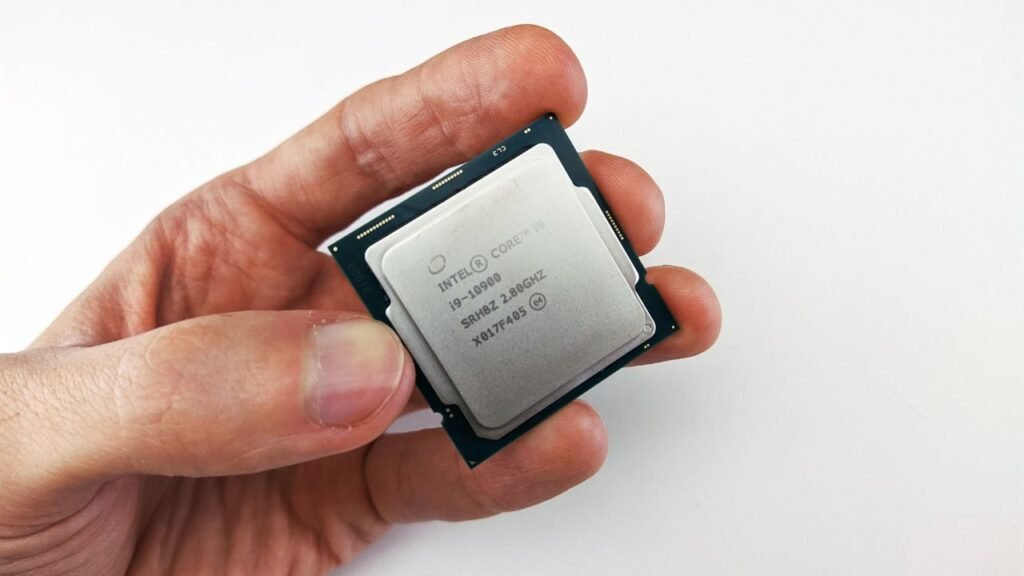
Which brings us to: This one really caught me off guard. Because Windows is configured with a “Balanced” power plan by default, it has the potential to slow down CPU performance to conserve power, even when you’re connected to a power outlet.
Open Control Panel, then to Power Options and select “High Performance.” (This will suck your battery down faster if you are gaming on a laptop – keep plugged in!)
Step 7: Check For Overheating Issues
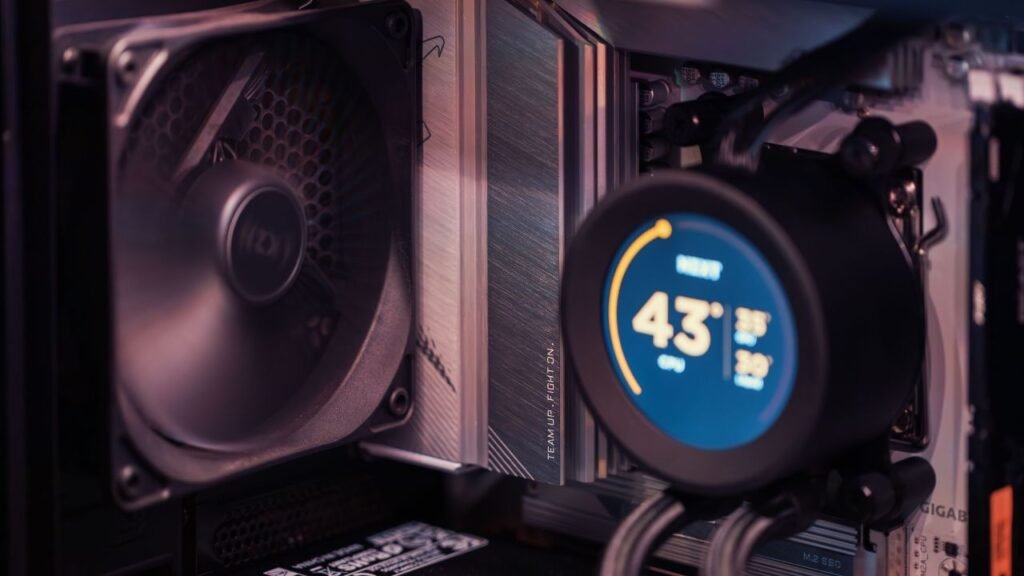
Overheating and CPU usage in games tend to go together. The CPU, when it gets too hot will self-throttle to prevent burning out, just as its temperature rises even higher trying to deliver the performance your game demands.
I installed a free utility called HWMonitor to check my CPU temperature during gameplay. My laptop topped out at 85C, which is roasting and far too hot to operate continuously. I blew the dust out of my laptop’s vents with a can of compressed air, and saw my temperatures drop to a more reasonable 65-70C.
Step 8: Turn Down CPU Intensive In-Game Settings
Not all game options are GPU-murderers There are some game options, such as physics simulation, draw distance and NPC density, that use more CPU than GPU.
In most of the games I play, reducing some of these (not just graphics quality) can sometimes relieve a ton of CPU strain. I especially saw this in open-world games that continually perform lots of background AI and physics calculations.
Step 9: Scan For Malware (Yes, Seriously)
This one was a little embarrassing. After months of inexplicable CPU spikeage, I ran a scan with Malwarebytes and discovered a cryptomining script lurking in the background, silently consuming my CPU time.
I never would have guessed this until I checked. If other fixes don’t seem to help, then this is well worth a shot.
This Is What Really Transpired From My Own Setup
My Laptop is an i5 10th gen with 8GB RAM and GTX 1650. CPU usage in GTA V was 95-100% most of the time before these fixes and I used to experience stuttering every few minutes.
I closed background applications, updated the chipset drivers, blew the dust out of the vents and switched my power plan, and on the same game, CPU usage was a consistent 65-75%. The stutter was basically gone.
I’m not saying each fix applies equally to every machine, but I will say doing them all had a significant effect for my particular configuration. You can also read:
- Best Monitor Refresh Rate for Gaming: 60Hz vs 144Hz vs 240Hz
- Blue Screen, Three Times in Ten Minutes, Right After I Turned On XMP
The Biggest Mistakes People Make
“You jump straight to blaming the GPU. I did this as well. Just because GPU usage is high doesn’t necessarily mean anything. Check the CPU usage separately to see if it could be a graphics card issue.”
- Overclocking, but you don’t really know what you’re doing. A pal of mine bought a device (a laptop, in his case) after watching a random video about overclocking. With the CPU enabled, it kept crashing and he had to reset it. Don’t bother with overclocking unless you know what you’re doing.
- Failing to remember other processes. I want to highlight this because this was the most serious mistake I made. I assumed that any background apps, when ‘at rest’ were ‘basically not doing anything’. Actually, they were doing far more than I realised.
- Overlooking potential overheating. Many would fix the CPU, but don’t bother to see if overheating is partly to blame. Both happen to simultaneously.
- Thinking that ‘an upgrade’ must be the answer. Maybe… It often is, when it comes to processors of certain vintage. But really, thoroughly check all else before spending a penny unnecessary.
Closing Thoughts
Having your CPU run constantly high while gaming doesn’t necessarily mean that your processor is actually an old, busted piece of hardware. In most cases, it’s just a combination of background bloat, old drivers, and settings nobody ever checks.
I wasted ages upgrading hardware when it was a cluttered system running 14 processes I didn’t know about. After tidying it up, my ageing setup was playing much better than I expected.
If this is happening to you today, don’t panic, and do not order a new CPU just yet. Follow these steps one-by-one, and be sure to keep an eye on your Task Manager as you go. You might be in for a shock when you see what’s really happening under the hood.
Want to go deeper on the technical side? If you’d like to know the difference between CPU and GPU work here’s Intel’s own technical tutorial on CPU performance. If you’re thinking about an upgrade further down the line and want the required specs, Intel’s own guide to CPU performance here.