I’d just gotten home after a long work shift, got my takeout, and was truly looking forward to sitting down for a much-anticipated game I’d been waiting to install all week. I clicked the icon twice, the tiny load circle spun around once… And then silence.
No pop up, no window, no crash report. Just a game that simply opened its eyes, looked around, and went back to bed. If you’ve ever sat there clicking the same icon five times in a row as if that’s going to make a difference, you know exactly the feeling I’m talking about.
How do I fix a game not opening in Windows? The frustrating part about Windows games that are not launching is that there’s no such thing as the one-stop fix. It can be something as silly as a background update sitting at 99% for hours. It can be a driver conflict, a broken file, or Windows totally blocking something in the name of “security.”
I’ve seen them all, and I’ve developed quite the reliable troubleshooting checklist over the years of what it is actually doing. Let’s take a step back and do it properly: The way I actually wire for troubleshooting.
First, Don’t Panic and Reinstall Immediately
That was my first mistake years ago. I get this all the time: the game just doesn’t load, so I go to the extreme and throw everything away, reinstall from scratch – and the game just won’t load. Turns out it wasn’t even the game it was a process that was still running in the background from the last run and had prevented the new one from executing.
Before you hit the nukes, take a look in Task Manager (Ctrl + Shift + Esc) to see if that bad boy is already running in the background. If it is, end the task, give it a couple seconds, and then try relaunching. This simple step solves launch issues more often than you think.
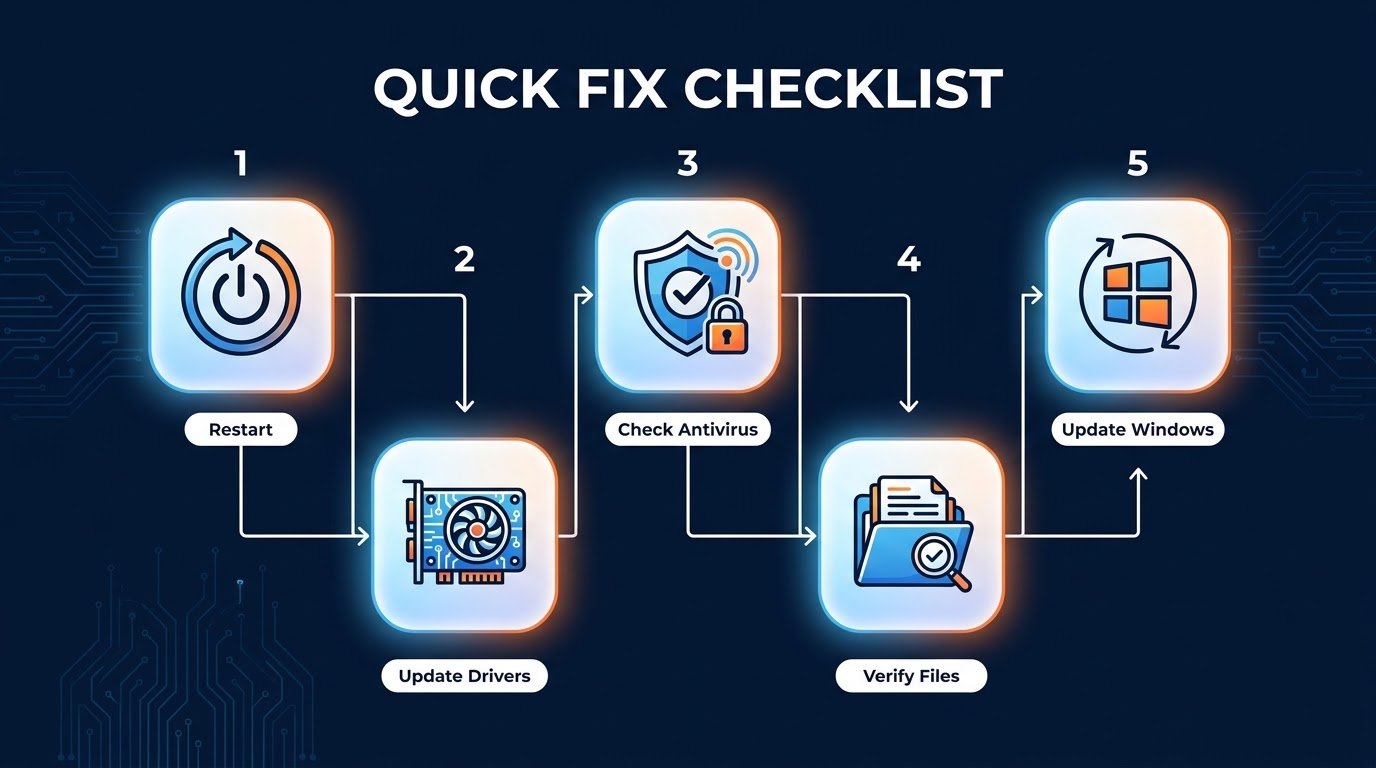
Step 1: Restart Your PC (Yes, Really)
I realize this sounds like the most basic IT support advice you’ve ever heard, but just give me a sec. Many of the “won’t launch” scenarios simply have a component (a driver, overlay, background service) that’s become a bit confused. Restarting flushes temporary memory and forces those services to load fresh.
I’ve had games that just wouldn’t start and after a reboot they load first time like nothing was wrong. Not sexy advice, but that does happen enough that I always do this first.
Step 2: Update Your Graphics Drivers
This one got me on the first time. I thought my driver was OK, since Windows Update never detected anything, but Windows Update and actual driver updates from the GPU maker are very different.
For NVIDIA, download the App (replaces GeForce Experience) and update through that. AMD users can check out AMD Software: Adrenalin Edition. For Intel integrated graphics, you can look at Intel’s driver assistant tool.
One of the main reasons why games simply fail to launch without any error message, and particularly with the recent titles using up-to-date DirectX or Vulkan features, is out of date or corrupted graphics driver.
Step 3: Run the Game as Administrator
Certain games require more permissions to access game files, particularly those protected by an anti-cheat. On the game shortcut or game executable, right-click, select ‘Run as administrator’, and see if that helps.
If it does launch that way, you could make your life easier each time by right-clicking the shortcut, Properties, Compatibility, and selecting “Run this program as administrator” and hitting okay.
Step 4: Verify Your Antivirus and Windows Defender
This one is sneaky and can be a frustrating support ticket to troubleshoot because you wouldn’t normally have a reason to head to the history or quarantine section of your security software. If a game file was automatically flagged for quarantine shortly after an update, you’ll never see it.
Navigate to Windows Security, click Virus & threat protection then Protection history. Find anything regarding your game, recently being flagged? If it is, then restore the file and add an exclusion for the install folder to prevent future false positives.
I faced the same problem with a much smaller indie game that used a weird launcher. Defender would call it out as suspicious just because it wasn’t a popular program at the time. After creating the exclude however it launched immediately.
Step 5: Verify Game File Integrity
Not on Steam? Truly, this is one of the most underrated fixes if you are. Right click your game in your library, hit Properties then Local Files, and then hit “Verify integrity of game files.” Steam will check all of your files and redownload them if needed.
There’s an option of “Verify” on a three-dot menu on a game page in “Epic Games Launcher”.
I’ve lost count of the number of times a launch failure has turned out to be a single corrupted file that verification quietly replaced in 2 minutes or less while I saved it from a full re-install.
Step 6: Update Windows Itself
I used to ignore Windows updates forever because they kept phoning home at the least convenient moments. But some fundamental components of a handful of major game engines are actually installed at the system level – through Windows Update. (Things like the.NET Framework, Visual C++ Redistributables, and the DirectX components).
Head to Settings > Windows Update and look for anything pending. It’s not much fun, but it does plug a few annoying compatibility holes. You can also read:
- Why GPU Prices Stay High Even When New Cards Launch, and Who Benefits From It
- What Happens to a Game You Bought When the Servers Shut Down
Step 7: Reinstall Visual C++ Redistributables and DirectX
This is one that people don’t think about too often because it feels like it is “something the game should handle automatically.” For the most part, it does get installed in most games during setup; however, occasionally the install gets halted or there is a version mismatch.
You can also manually download the latest Visual C++ Redistributable packages from Microsoft’s website, and install the DirectX End-User Runtime Installer. This actually fixed my crash-on-launch problem with a much older game that would just crash out before ever getting to the main menu.
Step 8: Verify Compatibility Mode is Enabled for Older Titles
When you try to run an older application on newer versions of Windows, it occasionally just doesn’t quite know how to behave. Right-click the executable, then select Properties and Compatibility tab and choose to run in compatibility mode for an earlier version of Windows, for example, Windows 7 or Windows 8.
I was having an old strategy game from a few years ago and could not get it to run on Windows 11 without enabling compatibility mode to Windows 7. No other fix worked except enabling compatibility mode.
Step 9: Check for Overlay Conflicts
Sometimes overlays such as Discord, GeForce Experience, RGB software, and even Xbox Game Bar can sometimes clash with how a game launches, more so if two overlays attempt to hook into the game at the same time.
Additionally, try turn off the Discord overlay temporarily (Settings > Overlay in Discord) and Xbox Game Bar at Settings > Gaming. This might seem not related at first, but overlay issues are surprisingly more common than you’d think, especially with new game launches.
How I Ruined My Whole Night
I once spent three hours trying to persuade myself my GPU was dead because I kept getting a crashing problem, continually rebooting a game. I even updated the drivers, reinstalled the game twice, and thought about reinstalling Windows out of frustration.
It was my storage drive, almost full. Windows needs space to work with and many games just don’t bother telling you there isn’t any free space when there should be – they just crash silently.
The very first thing I look at, before anything else on this list, is the remaining free space on my drive. It’s too simple to be the answer, but it has been more than once.
Widespread Mistakes People Make When Troubleshooting This
- Reinstalling immediately without checking background processes first.
- Want to turn off GPU driver updates because Windows tells you they’re “up to date”?
- Not checking antivirus quarantine logs.
- Missing the step of checking your game files if you think something is broken.
- Not checking available storage space.
- Going months without a Windows Update… That’s why your latest games aren’t working.
Wrapping Up
Few things are as panic inducing as games that refuse to start. While annoying at best, most issues with games that won’t launch just require a little patience rather than panicking, for reasons that will all be very familiar.
Follow these steps one at a time instead of doing everything at once.

