My internet plan told me I was getting 100 Mbps. My in-game ping told me I was getting 180ms. Those two figures had no business being that far apart, and I put up with it for months, because I didn’t know better.
And I learned the error of my ways, initially, with a bunch of brothers on a video call, and not even while playing a game: My brother’s internet connection was half of my advertised upload and download, and his ping on the same game was a third of mine. (Same town, same cable provider!) That was when I realized speed and latency are two different questions entirely.
That comparison took me on a truly maddening journey of router configurations, cable offerings, and an endless stream of conflicting forum advice. Some of the advice worked right away. Others didn’t seem to help at all, and I spent an evening trying them. A couple of those tips were so effective I was a bit ashamed I hadn’t tried them years before.
Here’s all that actually mattered, laid out the way I wish someone had said it to me before I started stabbing in the dark.
Hold on, Did You Say Ping or Lag?
People all interchange these words like they’re the same thing, and honestly I did this for years.
What is ping?
Ping is just the latency or the delay between your PC or console and the game server, which is measured in milliseconds (ms). The smaller the ping, the better.
Anything less than 30ms, and you’re playing almost instantaneously.
If it’s over 100ms, the game will feel a little sluggish. If it’s 150 to 200ms or higher, you’re effectively playing in a slide show.
Lag is the laggy behavior you experience – being rubber-banded, seeing enemies teleport around, your shots not registering, etc. High ping to the server (your latency), is often the cause, but not always. You can be playing with a relatively low ping and still lag out for no apparent reason, which took me entirely too long to realize. That generally means that there’s an issue on your side, not the server.
The first mistake almost everyone makes
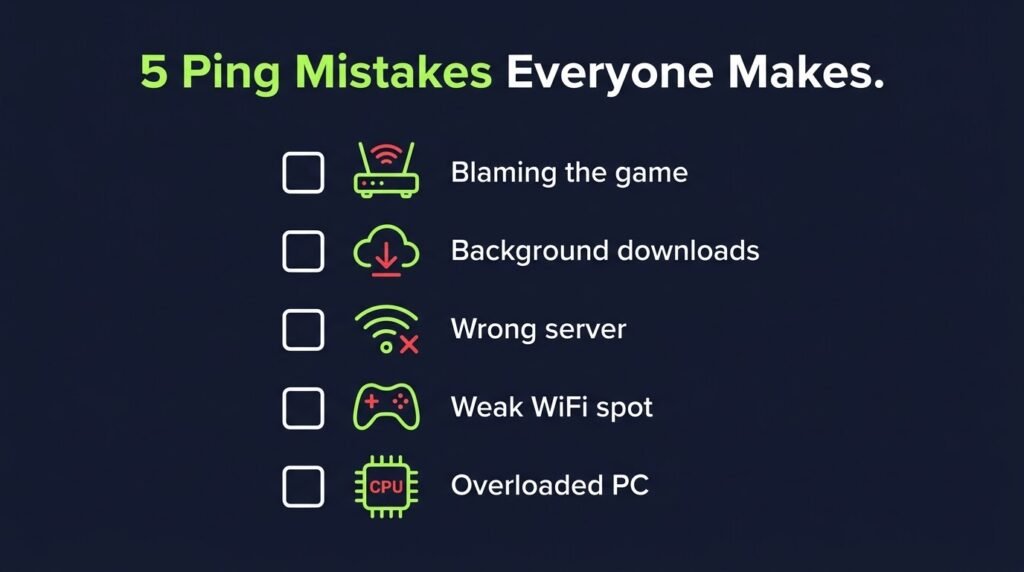
I used to believe that purchasing a “gaming router” would solve all my problems. I spent a significant amount of money on a gaming router after watching a YouTube ad that told me it was a gaming router with RGB lights, and therefore it was worth the investment.
It did help a bit. But my real problem was that I was playing over WiFi from two rooms away through a wall with my microwave directly beside my router. Sorry to burst the bubble here but you can’t outsmart the laws of physics. That brings me to the one big thing that changed my experience.
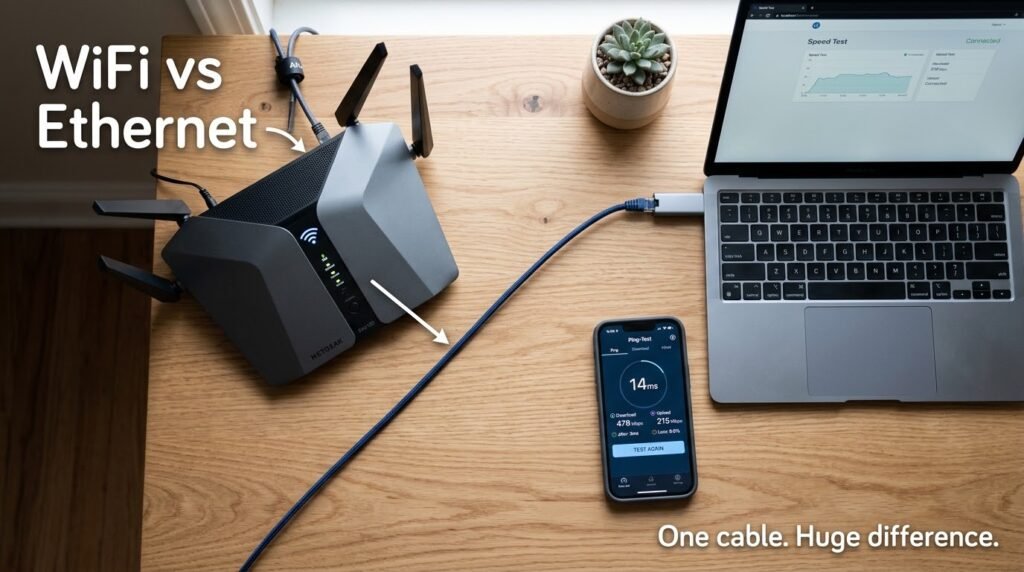
Step 1: Leave WiFi if you can
14.18. We are more and more reliant on WiFi, but the sad news is, most of us don’t need to be. Even if you’re shopping for broadband, there’s a strong case to prioritise a mobile plan over a WiFi connection.
Look, I know, running a cable is a pain. But this was more of a difference than literally anything else I’ve tried.
I ran a 15m Ethernet cable along the wall trim from my router to my PC, and my ping in the same games had dropped by 15-20ms just from that and the occasional spike had basically vanished. Wifi is inherently less reliable as it’s shared bandwidth and it’s impacted by walls, other devices, your neighbours wifi, even your microwave working.
If you can’t imagine leading a cable through your whole place, here’s a couple of better options.
- Powerline adapters (plug into your wall sockets, uses your home’s electrical wiring) Not as good as a direct cable, but significantly better than WiFi in most homes.
- A mesh wifi system if you’re sticking to wireless because it overcomes interference far more effectively than an old single router.
Step 2: Test your connection right now before you guess.
Test properly before you start messing with things so you’ve got a baseline. I run a speedtest.net for overall speed, but for gaming ping and packetloss you will have to use either Ping Plotter or one simple command prompt trick.
On Windows, open Command Prompt and type:
ping 8.8.8.8 -t
Give it a minute to run. If you see occasional massive spikes or “Request timed out,” that’s packet loss – and that’s probably the actual problem, not just the average ping.
Step 3: Determine What’s Causing Your Bandwidth Consumption
This one is a bit embarrassing. I spent a week troubleshooting my ping, thinking my internet was at fault, before it occurred to me that my roommate was seeding torrents all day long. Any device on the network downloading updates, streaming 4K, or doing backups to the cloud will completely destroy your ping.
Quick fixes:
- Pause Windows Updates and Steam/Epic downloads while playing.
- Get housemates to pause the Netflix marathons during your ranked round (no guarantees how well this will be received).
- Enable QoS. If your router has it, enable QoS and prioritize your gaming device. This is a relatively new feature, and newer routers, such as many TP-Link and Asus models, will have it built in (or allow you to easily enable it).
Step 4: Choose the Server, If possible, manually.
Certain games even pick servers for you on “best ping,” but it seems not to be the case all the time, right after a game update. In Valorant and CS2, you have the option to lock your server location manually in the settings. I changed my regional server for the one that is physically the closest to me and lost close to 25ms.
If you don’t know which server is actually the nearest, just search for your games’ server locations and a ping test tool.
Step 5: Restart your router, more times than you think you need to
I feel like this is too obvious to even be true but routers build crap up in memory after days and days of uptime (especially if you buy one from the ISP). I reboot mine once a week now on a schedule and honestly, my connection just seems a little more stable.
You can also read:
- Why GPU Prices Stay High Even When New Cards Launch, and Who Benefits From It
- What Happens to a Game You Bought When the Servers Shut Down
Step 6: Check for background applications on your PC.
This one surprised me. My Nvidia Shadowplay stream was active on Chrome (30 tabs), Discord, and a cloud backup program while I was gaming. Yet I experienced no lag on my network, yet I was getting laggy gameplay. It was not my network, but my CPU and RAM choking.
Before a gaming session I close any background apps I don’t need; and if I am streaming or recording I make sure that my PC can “breathe”, and not choke my game.
Should you use a “gaming VPN”?
I tested one of these (Exit Lag, specifically) when my ISP decided to reroute all my traffic through a truly bizarre path to a certain game’s servers, and it helped there too, taking some ping off by finding a more direct route.
But I want to be upfront: This isn’t magic and it won’t work for everyone. If you have a decent baseline connection and regularly path your traffic to the server using an optimal route, this type of routing tool can actually introduce slower routing and degradation in a lot of cases. Check out the free trial before investing in a subscription, and don’t think this will resolve a bad internet plan.
The Most Common Things People Get Wrong
- Spending money on a more expensive router can solve the WiFi placement issue.
- Didn’t ever do packet loss, just watched the average ping number.
- On a server that is “recommended” (but is not the closest one).
- Assuming all stuttering is network related by neglecting your PCs CPU/RAM usage.
- Failing to remember that your opponents on the same net are handling their own video game too.
A few extra things worth checking
- Console players should also ensure you’re not currently on a metered or overloaded WiFi extender. Verify if your ISP includes a low-latency or gaming plan – some providers are advertising this now, but it’s worth making a call and asking.
- You have high ping to all servers and not just your game of choice Typically, this means your problem is upstream, with your internet provider itself, and there isn’t a local solution that will really fix it for good. If that’s the case, it might really be worth it to check out others in your area.
Where I Stand On This
All this stuff didn’t overnight me to instant Minecraft victory. It was actually just a slow process of narrowing down my choices, plugging away one at a time-switching to a cable instead of WiFi, determining what other devices were hogging bandwidth, selecting the optimal server, lightening the load on my own PC while I was playing, until at last my games actually felt like they were running smoothly again.
So if you’re having lagging matches right now, this is not the time to buy a new router and assume that you’ll fix the problem. We’ve already gone down the rabbit hole of free solutions: run a speed test, check in the background, plug in a cable if you can. And you’ll see that the real issue is something much simpler than you think mine was.

